Install
LayerCue runs on macOS and Windows. On a Mac you download it from this site; on Windows it comes from the Microsoft Store.
What you need
Section titled “What you need”| Mac | Windows | |
|---|---|---|
| System | macOS 13 (Ventura) or later | Windows 10 version 1809 or later |
| Computer | Apple silicon or Intel | 64-bit (x64) PC |
| Where to get it | The download page | The Microsoft Store |
| Updates | LayerCue tells you when there is one | The Store installs them |
A second monitor or a projector is what LayerCue is for — several at once, if you like, with Multi-Output — but you do not need one to start: you can build your slides and see them in the app without it. Signing in (see below) needs an internet connection.
On a Mac
Section titled “On a Mac”The Apple silicon and Intel builds are separate downloads, so take the one that matches your Mac. If you are not sure which you have, look under the Apple menu → About This Mac.
- Download the Apple silicon build or the Intel build. Both are also on the download page.
- Double-click the
.dmgfile you downloaded. - When the window opens, drag the LayerCue icon onto the Applications folder on the right.
- Eject the disk image, then open LayerCue from your Applications folder.
LayerCue is signed and notarized by Apple. The first time you open it, macOS may still check with you because it came from the internet — choose Open.
On Windows
Section titled “On Windows”- Open LayerCue in the Microsoft Store (published by CastPad, free) and install it.
- Open LayerCue from the Start menu.
A small LayerCue window appears straight away and shows what it is getting ready — Preparing the screen…, Loading presentations… and so on, with the version number on the right. The main window follows a few seconds later.
LayerCue runs only once at a time. If you open it again while it is already running, the open window comes to the front instead of a second copy starting.
The first time you open it
Section titled “The first time you open it”LayerCue does not start empty. The sidebar already holds:
- READ ME, under Library — five short guides: Start here, Working with slides, Bring it in, Make it with AI and Libraries & cue sheets. They are ordinary presentations, so you can click through them, edit them and try things out on them.
- Tour, under Cue Sheets — the same five guides, in order.
- My Stuff — a library with one empty New Presentation, ready for your own work.
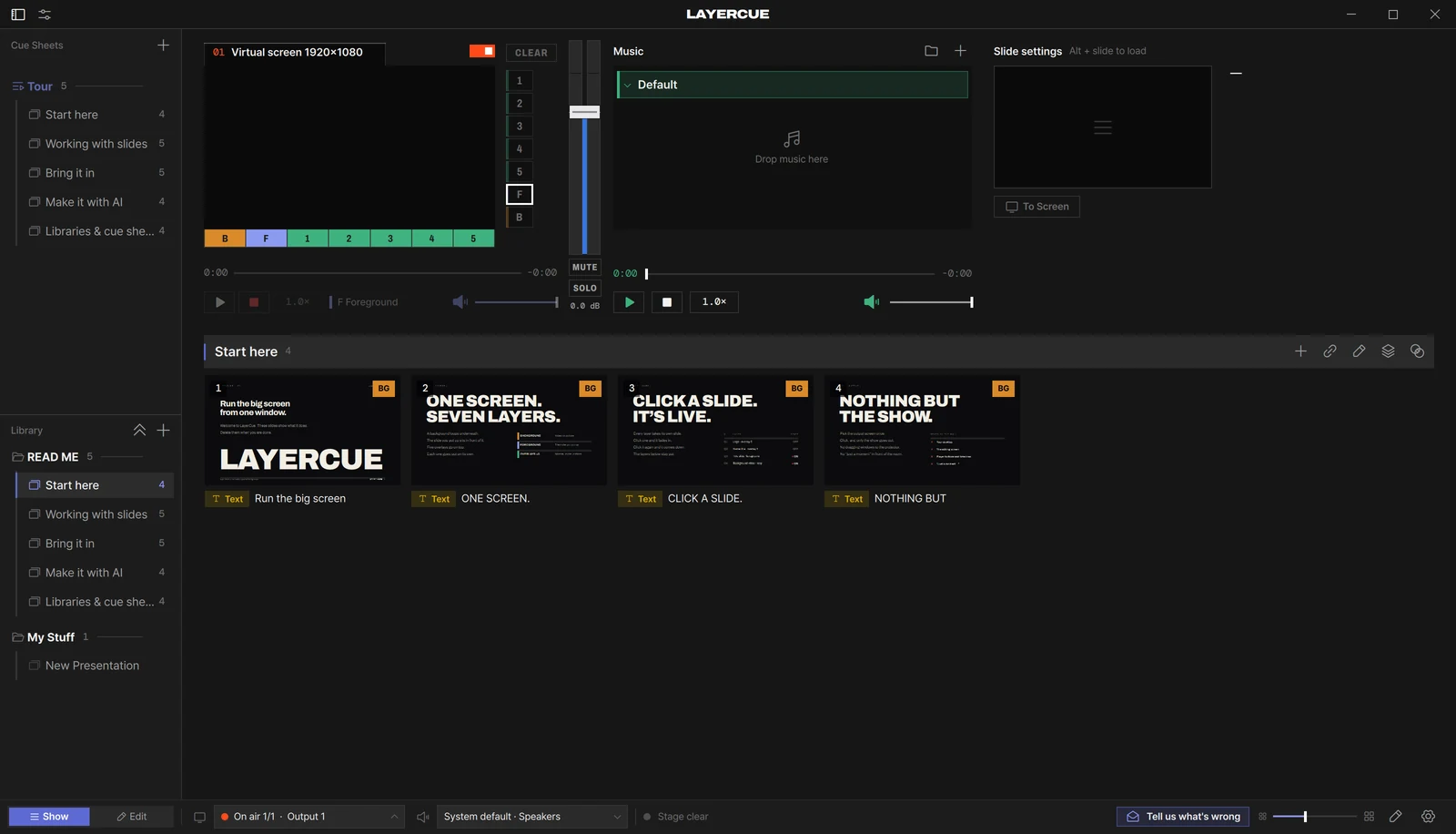
Language. Menus, messages and the READ ME follow your computer’s language — Korean or Japanese if that is what the system uses, English otherwise. To change it, go to Settings › General › Language; the menus switch at once. The READ ME stays in the language it was made in.
Screen. LayerCue starts with one output, Output 1, and its power switch on. If a second screen is connected, Output 1 goes to it, and as soon as LayerCue is ready the output opens there — black until you send something. If not, Output 1 starts on Virtual screen 1920×1080: nothing goes out, it only sets the shape you build for. Plug in a projector later and LayerCue switches to it and opens the output there. It never picks, or opens on, the screen you are working on by itself. To take the output off a screen, use the power switch at the right end of the Output 1 header above the preview. More in Screens and going live.
When you are done with the READ ME, right-click it, choose Delete and confirm. Its five
guides go to the Trash (Recycle Bin on Windows) with it; My Stuff and everything you made
stay where they are. Changed your mind? ⌘Z / Ctrl+Z brings it back. The Tour cue sheet
is left empty — right-click it and choose Delete.
Your presentations are kept in a LayerCue folder: inside Documents on a Mac, in your user
folder on Windows (C:\Users\<your name>\LayerCue). More in
Where your files live.
Sign in once, for Settings
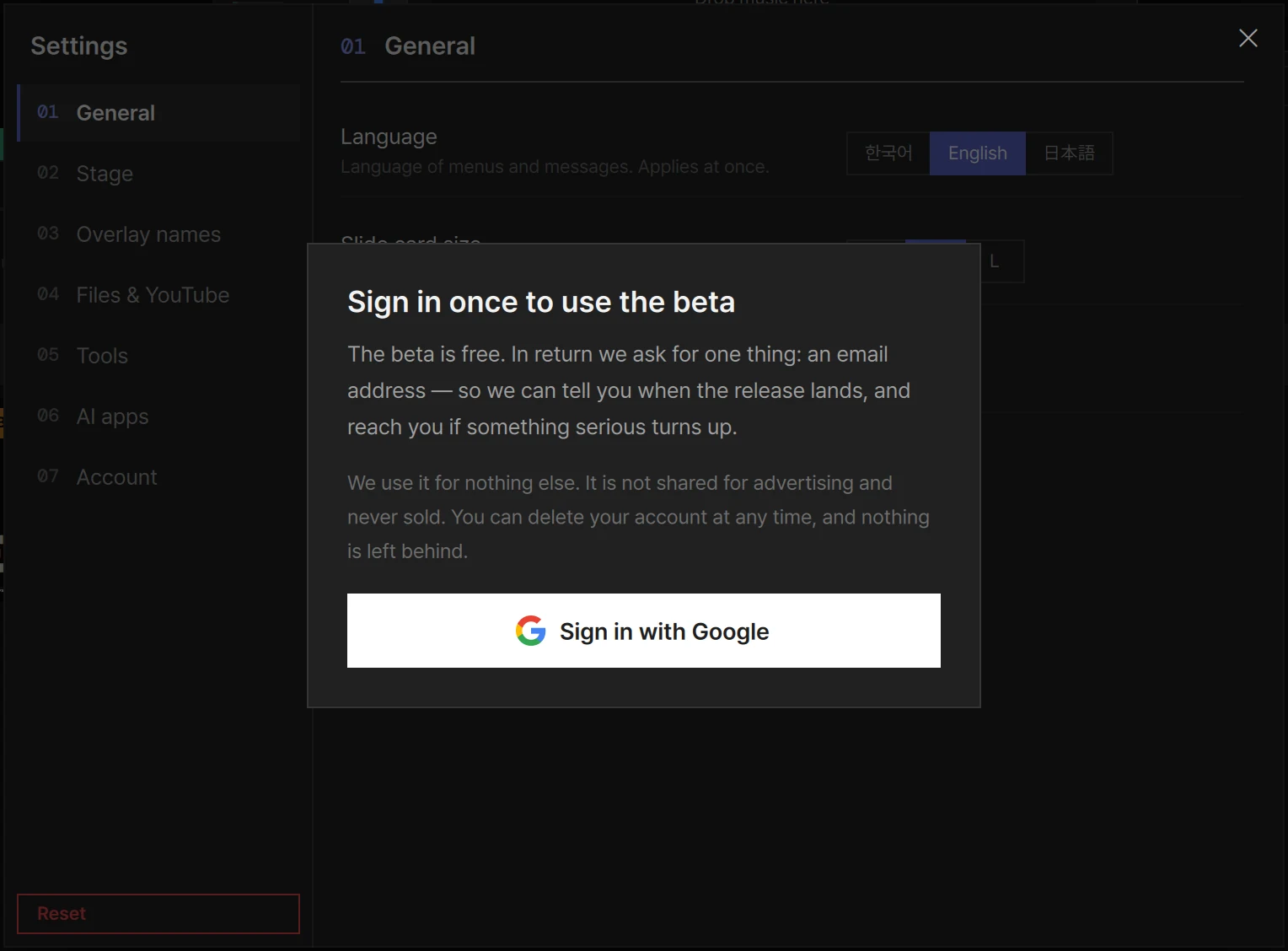
Section titled “Sign in once, for Settings”The first time you open Settings (the gear in the bar at the bottom of the window), it is covered by Sign in once to use the beta. The beta is free; in return it asks for an email address.
- Press Sign in with Google. Your browser opens, and the button reads Finish in your browser, then come back.
- Sign in in the browser. When it says You are signed in., go back to LayerCue.
- If the browser asks whether to open LayerCue, allow it. If nothing happens, press Open LayerCue on that page.
If you closed the browser halfway, press Never mind in LayerCue and start again.
Everything you use during a show works without an account — slides, output, cues and music. Only Settings and sending a message with Tell us what’s wrong need you to be signed in.
When a new version is out
Section titled “When a new version is out”When you open LayerCue, it checks for a new version — at most once a day. If there is one, an orange Update appears in the bar at the bottom of the window. That is all; nothing happens unless you press it.
Press it and A new version is out shows the version you have, the latest one, and what changed.
- Press Get it. LayerCue downloads the new version to your Downloads folder and checks its signature.
- The window then reads Downloaded — quit LayerCue, then drag the new one in. Press Open and quit: the disk image opens and LayerCue closes.
- Drag LayerCue onto the Applications folder, let it replace the old copy, and open it again.
Your presentations are not inside the app, so replacing it leaves them as they are.
To check without waiting, go to Settings › Tools. The LayerCue row shows the version you have; press Check. If a new version is listed, Update opens the same window.
If the download fails, the window offers Try again and Get it from the site.
Windows
Section titled “Windows”The Microsoft Store keeps LayerCue up to date. LayerCue does not look for updates itself, so no Update marker appears. If you press Check in Settings › Tools, it says Updates come automatically from the Microsoft Store.
Version 0.9.9 comes this way too.
So it never closes by accident
Section titled “So it never closes by accident”On a Mac that means ⌘Q and the red button on the window; on Windows, the × at the top
right of the window. None of them close straight away. They ask first — Quit LayerCue?
with Your work is saved. — and you choose Quit or Cancel.
If output is on, the same window warns you first, in red: You are on air — quitting will black out the screen.
When it will not open
Section titled “When it will not open”On a Mac
- LayerCue needs macOS 13 or later. On macOS 12 or older it will not open.
- The Apple silicon build does not run on an Intel Mac. Download the Intel build instead.
- LayerCue is signed and notarized by Apple, so macOS should not block it. If it does, delete the download and get it again from the download page.
On Windows
- If the Store will not install it, check the requirements above: Windows 10 version 1809 or later, on a 64-bit (x64) PC.
- If you open LayerCue and nothing seems to happen, it is probably already running. Its window comes to the front; if Windows does not let it jump ahead, its button on the taskbar flashes instead.
For problems once it is running, see When something goes wrong. Next: The main window.