Manual
LayerCue sends your presentation to the screen in layers. A video or a picture underneath, the slide over it, a title or a logo over that — each layer goes up and comes down by itself. A video, a picture or a YouTube video can run as the background, and changing the slide on top leaves it running.
Worship services, events large and small, concerts, classrooms, a talk you are giving on your own — anywhere a screen faces people.
| Mac | macOS 13 or later, Apple silicon or Intel. From the download page. The app checks for new versions itself |
| Windows | Windows 10 (version 1809) or later, 64-bit. From the Microsoft Store, which also keeps it up to date |
| Languages | English, Korean and Japanese |
Where to start
Section titled “Where to start”- Install — getting LayerCue onto your Mac or PC, and opening it the first time
- The main window — what each part of the window is for
- Your first show — from a new presentation to a picture on the second screen
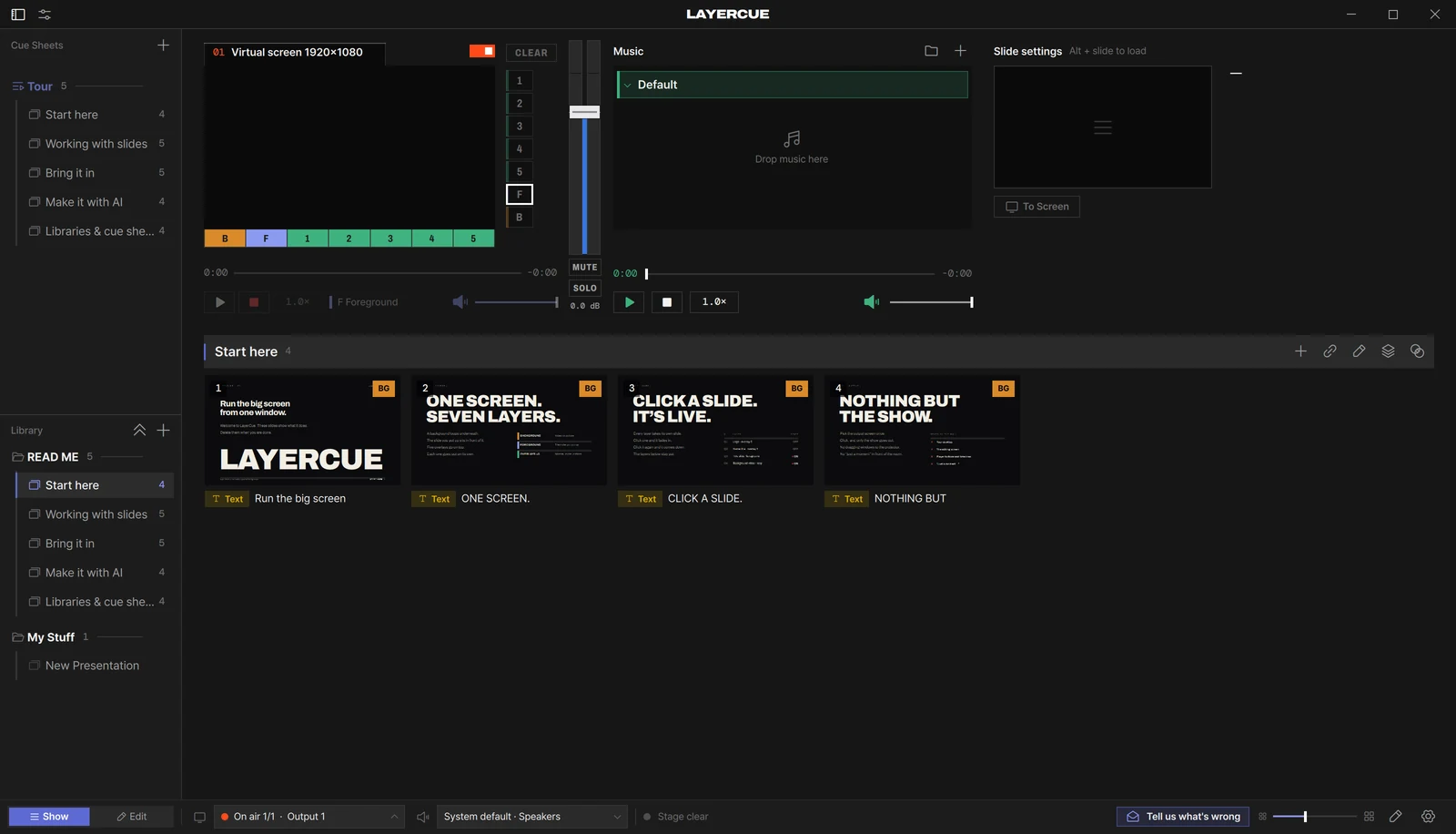
The first time you open LayerCue it is not empty. A library called READ ME holds five short presentations about the app, and a cue sheet called Tour lines them up in order. They are ordinary slides — click one and it goes out, like anything else. Your own work can start in My Stuff, where an empty New Presentation is waiting.
By topic
Section titled “By topic”| Libraries & cue sheets | Where presentations are kept, and the running order for one event. Also Presentation settings and Find |
| Slides | Video, pictures, text and YouTube. Slide settings · The slide editor · Design tools · YouTube |
| Import & export | PowerPoint files in as slides you can edit · PDF in as pictures, and out from a presentation |
| Output | Choosing the screen and going live. Multi-Output · Layers · Sound and the meter |
| Music | Background music: ranges, repeat, crossfades |
| AI apps | Letting an AI app on your computer work in LayerCue |
| Settings | What is in the Settings window |
| Help | When something goes wrong. Keyboard shortcuts · Where your files live |
What LayerCue is, what it costs and where it runs are in the FAQ. What changed in each version is in What’s new.
What it does today
Section titled “What it does today”- Seven layers — Background, Foreground and five overlays. Each goes up and comes down by itself, and the background keeps running while you change what is on top
- Multi-Output — several output monitors at once, each showing the same stage but only the layers you choose for it: everything for the room, say, and the words without the background for a stage monitor. Every monitor has its own power switch
- Libraries and cue sheets — presentations are kept in libraries, which are real folders on your computer. A cue sheet is the running order for one event: it lines up presentations from any library without moving them
- The slide editor — text with outlines, shadows, inset, alignment and per-character styling; shapes, icons, pictures, video boxes, gradients and box shadows. Sizes are a share of the screen, so what you build at 1080p looks the same at 4K
- PowerPoint and PDF — a
.pptxcomes in as slides you can still edit, a PDF comes in as pictures, and a presentation can be exported to PDF - YouTube — paste the address and it plays, on any layer including the background, full screen or in a box on the slide, once or on a loop. You can pick the captions and the dubbed audio track, and the stage never shows the progress bar, the title, the share button or “More videos”
- Find —
⌘F/Ctrl+Ffinds cue sheets, libraries and presentations by name, and presentations by the text on their slides - Music — a separate player for background music: an In/Out range, repeat, crossfades between tracks, and lowering or muting it while a video plays
- Sound — a level meter and a master volume, and a choice of audio device. System default follows whatever the computer is set to; pick a device and the computer’s own sound output follows it while LayerCue is open, so YouTube’s sound goes there too
- AI apps — Claude Desktop, LM Studio, Cursor and other apps that support MCP can use LayerCue as a tool: build a cue sheet or split lyrics into slides just by asking. The connection stays on your computer and works only while LayerCue is open
- Lock editing — one button at the bottom of the window, so a stray drag or paste cannot change the show. Sending slides out still works while it is on
- Mac and Windows, in English, Korean and Japanese
Not there yet
Section titled “Not there yet”These are on the list, but not in the app today.
- Text animation — lines arriving one after another
- Fill & key output — sending alpha alongside the picture, so LayerCue can sit where a dedicated titler would
Free while it is in beta
Section titled “Free while it is in beta”There is no charge during the beta. You sign in once, with Google — it is needed for the Settings window and for sending us a message. In exchange, tell us what you need and it becomes the next thing we build. Several features got here exactly that way.
At the bottom of the window there is an envelope button, Tell us what’s wrong. Press it, choose Question, Idea or Bug, write, and press Send. When the window is narrow, only the envelope shows.
If email is easier, write to support@layercue.com.