Screens and going live
This page is about the screens your audience sees — where the picture goes, how to put it on a screen and take it off again, and how to keep the show safe while it runs. LayerCue can send the stage to several monitors at once, each showing only the layers you choose; that is Multi-Output. What goes on which layer is in Layers. Where the sound goes is in Sound and the meter.
The stage tile
Section titled “The stage tile”The top band starts with the stage tile. It is Output 1, the first monitor, and it is where you run the show from.
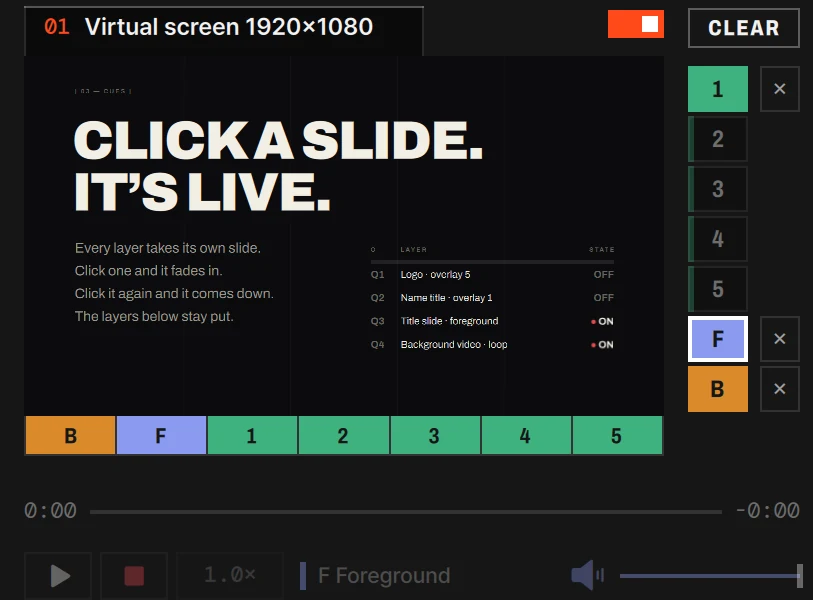
| Part | What it is |
|---|---|
| The tab at the top left: 01 and a name | Output 1. Click it to name the monitor and choose its screen (see below). Until you name it, it shows the screen’s name — or Output 1 once there is more than one monitor |
| The small text at the right of the header | The screen’s name and resolution. not connected, in orange, when the power is on but the screen is unplugged |
| The switch at the right end | The power switch: Output 1’s output window, on or off. See Turning a monitor on and off |
| The preview | What Output 1 shows, in the shape of its screen |
| The seven cells under the preview (B F 1 2 3 4 5) | Layers shown: which layers this monitor shows. See Multi-Output |
| The column to the right, with CLEAR at the top | The stage’s seven layers: what is up, and the buttons that take it down. See Layers |
| The row at the bottom | Progress bar, play / pause, the red ■, speed, and the volume of the layer you are controlling |
Add a second monitor and a second tile appears to the right of this one — see Multi-Output.
Choosing the screen
Section titled “Choosing the screen”Click the tab at the top of the stage tile (01 …). A small panel opens with the monitor’s name and Screen.
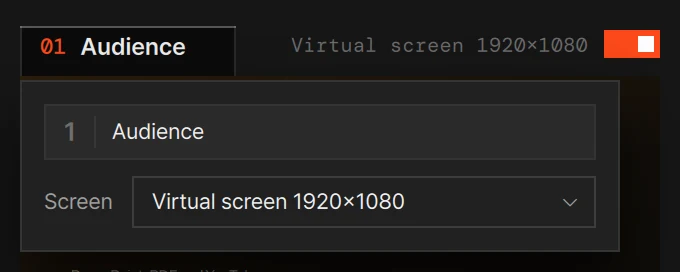
| The name | Type a name such as Audience, up to 24 characters (the empty field reads Name (audience · stage · lobby …)). It goes on the tab, in the status bar and in messages |
| Screen | The list of screens. Pick the one Output 1 goes to |
The Screen list holds:
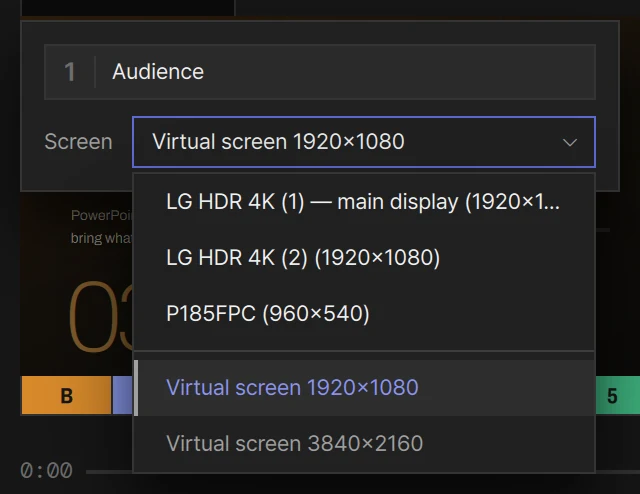
| In the list | What it is |
|---|---|
| A screen name and its resolution | A screen that is plugged in — or one you have used before that is unplugged now, dimmed, with · not connected after its name. LayerCue remembers up to five of those, the most recent first. The screen you work on has — main display after its name |
| Virtual screen 1920×1080 and the like, at the bottom below a thin line | A virtual screen, in lighter text: a size to build for, not a place the picture goes |
While the chosen screen is unplugged, the list says so even when it is closed: the name in it ends in · not connected.
If Output 1’s power is on, choosing a plugged-in screen puts the output there straight away — black while the stage is empty. The one screen it will not go to by itself is the one the LayerCue window is on — see Sending to the screen you work on.
Your choice is kept when you quit and reopen LayerCue. Output 1’s screen also sets the shape you work in: the slide cards, the preview, Slide settings and the slide editor all take its aspect ratio.
Settings › Stage › Output monitors lists the same names and screens, and is where you add more monitors. You can choose Output 1’s screen there too, from the same list.
Which screen is chosen for you
Section titled “Which screen is chosen for you”The first time LayerCue opens, Output 1 gets an external screen if one is plugged in. If there is none, it gets Virtual screen 1920×1080. It never picks your main display by itself. The power starts on, so a projector that is plugged in goes black as soon as LayerCue has finished starting — ready for the first slide.
After that, a screen you chose stays chosen, even while it is unplugged. If you have used the venue’s projector before, it is still in the list — choose it ahead of time and the output appears the moment the cable goes in. Until then, the cards and the preview use the size that screen had last time.
The one exception is a virtual screen. If Output 1 is on a virtual screen when you plug in an external screen — or when LayerCue starts with one plugged in — LayerCue switches it to the real one, as long as no other monitor already uses that screen.
Sending to the screen you work on
Section titled “Sending to the screen you work on”You can choose the — main display row on purpose — to see the full picture on a laptop with nothing else attached, for example. LayerCue never covers its own window by itself, though. When an output would land on the screen the LayerCue window is on without you switching it on there — you choose that screen for a monitor whose power is on, say, or LayerCue starts with a monitor set to it — LayerCue switches that monitor’s power off instead. Except at start-up, it tells you why: “Audience”: that screen has the LayerCue window, so its output is off — switch the power on again to cover it. So turn the power switch on yourself; the output then covers the LayerCue window. To get back, move the mouse and press the round ✕ that appears in the corner (see below).
Virtual screens
Section titled “Virtual screens”A virtual screen is a size with nowhere to go. Choose one for Output 1 and nothing is sent anywhere; it only sets the shape for editing and the preview. That way you can build for a 4:3 projector or a portrait screen before you have the hardware. (A second monitor on a virtual screen shows only in its tile — see Multi-Output.)
They are in Settings › Stage, under Virtual screens (Settings is the gear at the right end of the status bar). There are two to begin with, 1920×1080 and 3840×2160. Each row shows the size and its ratio, such as 1920×1080 (16:9), and a trash button to remove it.
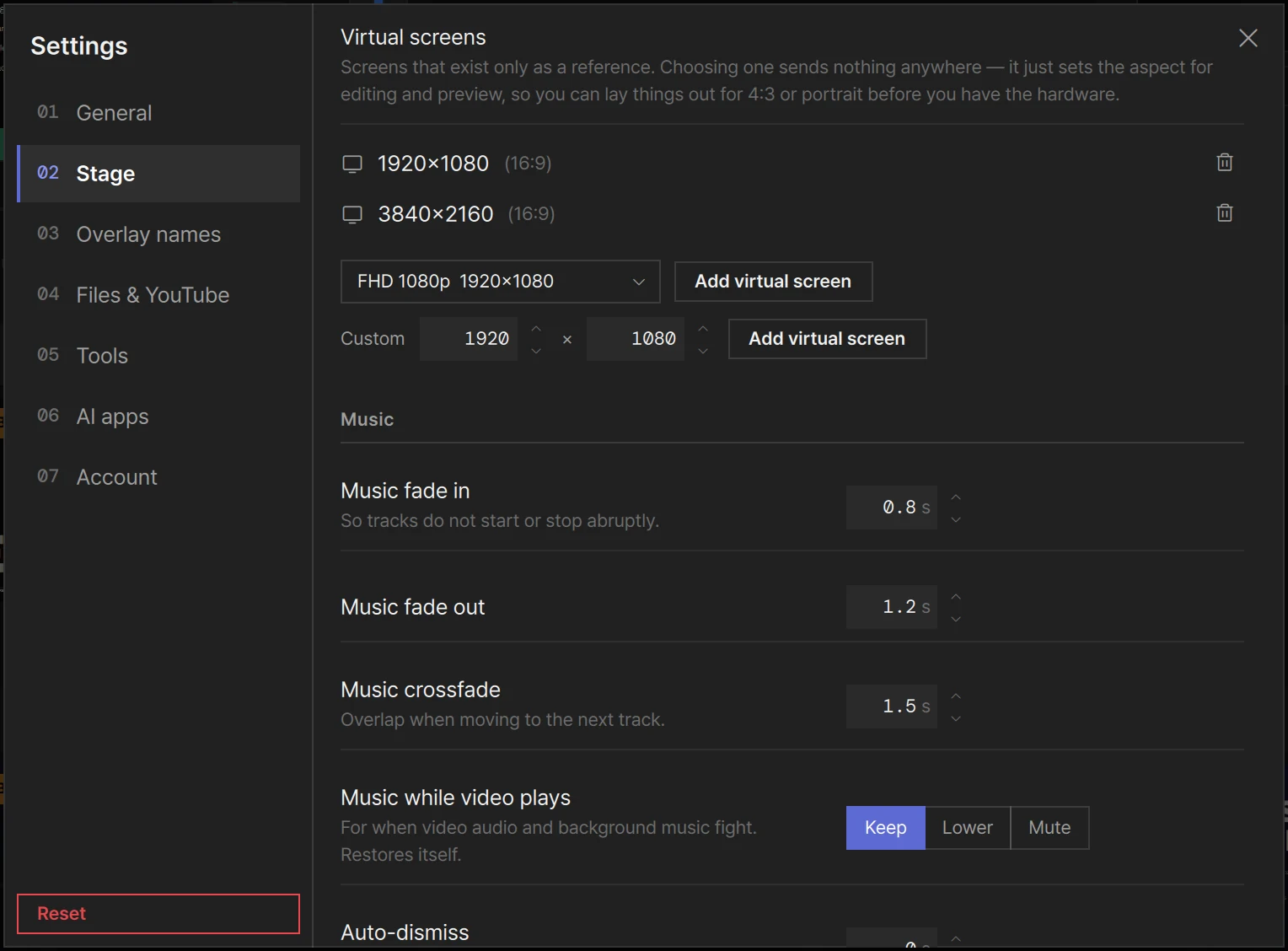
To add one, either:
- pick a size from the list and press Add virtual screen — FHD 1080p, 4K UHD, HD 720p, 4:3 XGA, 4:3 SXGA+, 16:10 WUXGA, Portrait 1080, Portrait 4K or Wide 2:1, or
- type a width and a height on the Custom line (16 to 16384 each) and press Add virtual screen on that line.
A size that is already there gives That size is already in the list. The last one cannot be removed: Keep at least one virtual screen.
Turning a monitor on and off
Section titled “Turning a monitor on and off”Each monitor has a power switch at the right end of its tile’s header, and the switch is the output window:
- On (orange): LayerCue opens a full-screen output window on that monitor’s screen. While the stage is empty it is black. The monitor’s number on its tab turns orange.
- Off: the window closes and the screen shows its desktop again. The number goes dim, and while the stage is empty the tile shows a monitor icon.
Sending slides out does not open or close anything — the power alone decides. A slide you send out while every monitor is off still plays in the preview, sound included.
The power is remembered. The next time LayerCue starts, every monitor that was on opens its output window by itself as soon as LayerCue has finished starting up. (A monitor set to the screen the LayerCue window is on starts with its power off instead — see above.)
If a monitor’s screen is not plugged in, turning its power on opens nothing yet, and the header reads not connected. The output appears by itself the moment the screen is plugged in. A virtual screen never opens a window.
There is no button or key that turns every monitor on or off at once — each has its own switch. The same switches are in the status bar’s on-air list and in Settings › Stage › Output monitors (see Multi-Output).
Turning it off
Section titled “Turning it off”| Way | When |
|---|---|
| The power switch on the tile (tooltip Stop Output) | Usually |
| The switch in the status bar’s on-air list | The same thing, from the status bar — the list has every monitor |
| The round ✕ on the output screen | When the output covers the screen you work on. Move the mouse over the output and the ✕ appears in its top-right corner. It fades again about two seconds after the mouse stops. It turns that monitor’s power off |
Turning a monitor off takes nothing down. Whatever is on the layers keeps running — in the preview and on the other monitors, videos and their sound included. Turn it on again and it is all there as it was. To take things off the screen, see Taking things down.
On a Mac the output window covers the menu bar and the Dock on that screen, and it stays put when you switch Spaces. On Windows it covers the taskbar on that screen and stays above other windows.
If the cable comes out
Section titled “If the cable comes out”If a monitor’s screen goes away while its output is up, LayerCue closes that window and tells you: Output screen disconnected — plug it back in and it comes right back. (While other monitors are still out, the message names the one that went, such as “Stage” screen disconnected — plug it back in and it comes right back.) The power stays on and the screen stays chosen, so plugging it back in brings the output back by itself. LayerCue never moves the output to another screen — least of all onto the one you work on.
Choosing another plugged-in screen for a monitor that is on moves its output there — unless it is the screen the LayerCue window is on (see above).
Sending slides out
Section titled “Sending slides out”| What you want | How |
|---|---|
| Send a slide out | Click its picture · right-click → Present · Enter sends the slide at the cursor |
| Start it again from the beginning | Double-click its picture |
| Put it up paused at a point you chose | To Screen in Slide settings |
| Next and previous | → ← send the next or previous slide at once. ↑ ↓ go a row, Home End to the first or last, PageUp PageDown three rows — each sends the slide it lands on |
| Look without sending anything | Click the name under a card’s picture, or Option-click / Alt-click the card. Option / Alt + arrow keys move the cursor only |
| Widen the selection | Shift + arrow keys |
Clicking a slide that is already going out does nothing. It stays up, and a video keeps playing where it is, so a stray second click never rewinds or blanks anything. To start it again, double-click.
The arrow keys carry on from the slide that went out last, even after you have looked around with
Option / Alt. They stay within one presentation: on its last slide, → does nothing.
Taking things down
Section titled “Taking things down”Clicking a slide that is already up never takes it down. These do:
| What | Where | Mac | Windows |
|---|---|---|---|
| Everything | CLEAR at the top of the layer column beside the preview (Clear All) | F1 · ⌘1 |
F1 · Ctrl+1 |
| The foreground | The × beside F | F2 · ⌘2 |
F2 · Ctrl+2 |
| The background | The × beside B | F3 · ⌘3 |
F3 · Ctrl+3 |
| All five overlays | — | F4 · ⌘4 |
F4 · Ctrl+4 |
| One overlay | The × beside its number (Clear this layer) | — | — |
| The layer you are controlling | The red ■ under the preview — while that layer has a video or a YouTube on it | — | — |
A × appears beside a layer only while that layer has something on it. Each layer fades out with the Fade out of the presentation it came from (Presentation settings). Clear All leaves the music playing. There is only one stage, so whatever you take down leaves every monitor at once.
More on the seven layers in Layers.
What is going out right now
Section titled “What is going out right now”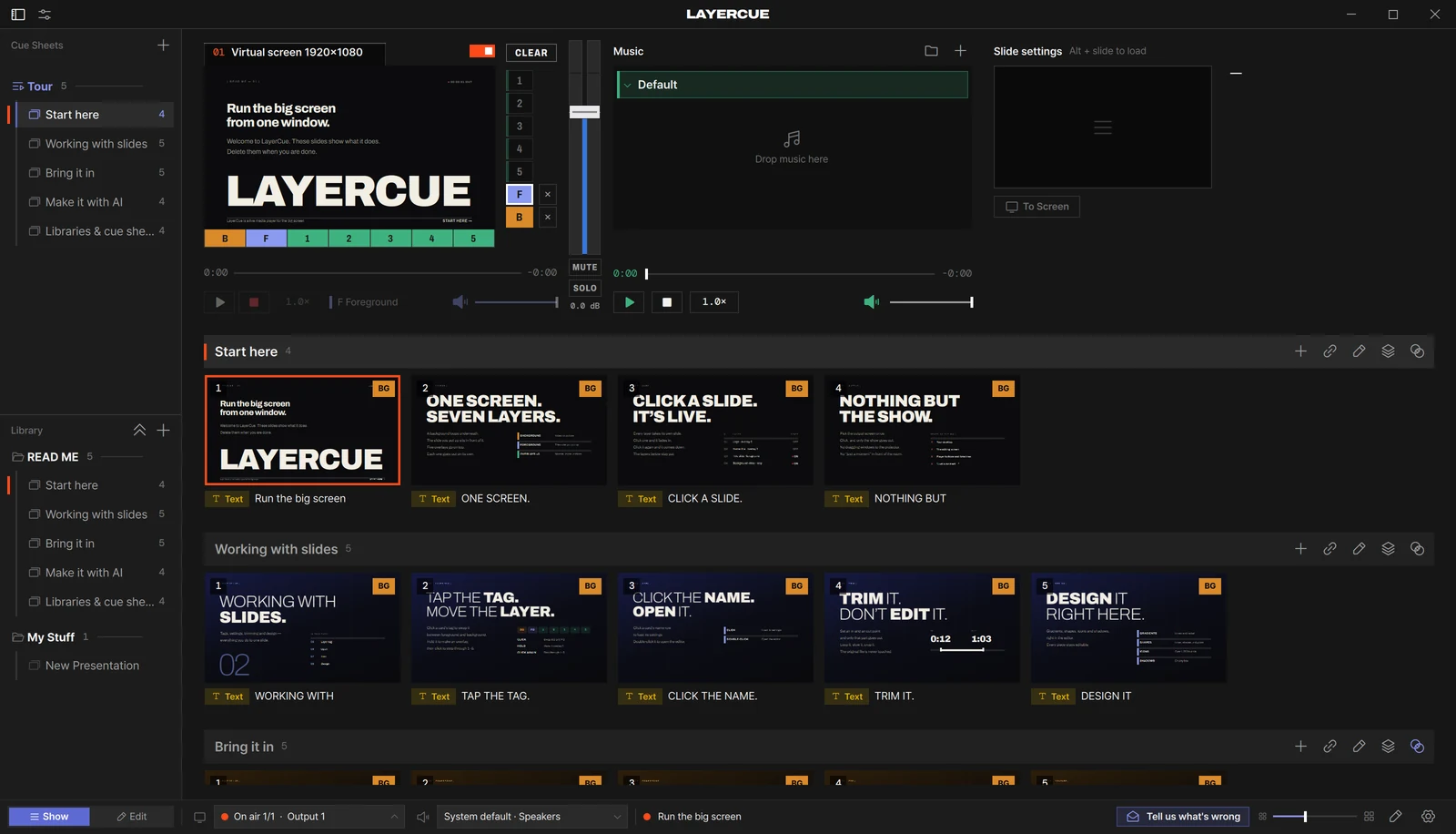
| You see | It means |
|---|---|
| An orange border on a card | That slide is on stage, on any layer. A selected card has an indigo border; orange wins |
| A short orange bar beside a presentation in the sidebar, and on its title bar in the slide list | Something from that presentation is on stage |
| Filled cells in the layer column beside the preview | Which layers have something on them — see Layers |
| An orange number on a monitor’s tab (01, 02 …) | That monitor’s power is on and its screen is there, so its output is up. A virtual screen counts here, though it shows only in the preview. A dim number means the power is off or the screen is unplugged |
| On air 1/2 in the status bar | How many of the monitors you have turned on are showing their output now — a monitor on a virtual screen counts, as on its tab — and No output when none is. See Multi-Output |
| The title further right in the status bar, past the sound device | What is on stage: the title of the slide that is up — the foreground’s first, then the background’s, then an overlay’s — or On stage when none of them has a title, and Stage clear when nothing is up. Its dot is orange while something is up and a monitor is on air, grey while something is up but no monitor is, and faint while the stage is clear. The title shows in a wide window only; the dot is always there |
When a streaming YouTube is on stage and an output window shows its layer, the video plays on the output screen, and the tile shows a cover instead of it: YouTube is playing on the output screen, with Bring to preview, Quality and — when the video has them — Chapters. See Multi-Output and YouTube.
Output resolution on a Mac
Section titled “Output resolution on a Mac”macOS often runs a screen at a scaled size: it draws a bigger picture and shrinks it to fit, which softens fine edges such as text outlines. So on a Mac, LayerCue sets the screen of every monitor whose power is on to a mode where one pixel of the picture is one pixel of the screen. There is no setting for this.
- It changes that screen’s system resolution — as soon as the monitor’s power is on and its screen is plugged in, even while the stage is empty. A screen that is already 1:1 is left alone.
- Your main display is never touched.
- The resolution is put back when you turn that monitor off, choose another screen for it, or quit LayerCue. If LayerCue quits unexpectedly, logging out of the Mac puts it back.
So nothing is left changed on a venue’s projector once you are done. Windows does not scale a screen this way, so there is nothing to change there.
Locking editing during the show
Section titled “Locking editing during the show”The pencil button near the right end of the status bar (tooltip Lock editing) locks editing. While it is locked, the button shows a lock (tooltip Unlock editing) — press it to unlock.
To lock automatically, turn on Settings › Stage › Lock editing while live (it is off by default). Editing then locks the first time you send something to the stage while an output window is open, with Live — editing locked (unlock in the status bar). If you unlock it, it stays unlocked. When the last output window closes, it unlocks by itself — but only a lock LayerCue set; a lock you set by hand stays.
| Still works while locked | Blocked while locked |
|---|---|
| Sending slides out, selecting, looking around with Option / Alt | Adding slides — files, links, new text slides |
| The controls under the preview, the master fader, MUTE and the music | Deleting, duplicating, pasting, dragging and reordering slides |
| A slide’s volume in Slide settings | Every other change in Slide settings — crop, Scale, In point and Out point, Repeat and so on — and Paste style |
| Copying slides | Setting a slide’s layer |
| Presentations, libraries and cue sheets — new, rename, delete, reorder, add to or remove from a cue sheet | Splitting and merging |
| Presentation settings | Changes in the slide editor |
Undo and redo (⌘Z / Ctrl+Z) |
Most blocked actions show Editing is locked while presenting, and nothing changes.
Messages you may see during a show
Section titled “Messages you may see during a show”| Message | What happened |
|---|---|
| Live — editing locked (unlock in the status bar) | Lock editing while live is on, and you just sent something to the stage while an output window was open |
| Editing is locked while presenting | You tried something the lock blocks |
| On air — to stop, use the power switch above the preview or ✕ on the output screen | You pressed Esc while an output window was open |
| Output screen disconnected — plug it back in and it comes right back | A monitor’s screen went away — usually a cable. While other monitors are still out, it names the monitor: “…” screen disconnected |
| “…”: that screen has the LayerCue window, so its output is off — switch the power on again to cover it | You chose, for a monitor that was on, the screen the LayerCue window is on. LayerCue switched that monitor off rather than cover its own window. Switch it on again if you do want that screen covered |
| All monitors are off — turn one on with the power button above the preview | You sent something to the stage while every monitor was switched off. A monitor on a virtual screen counts as on while its power is on. It is said once per session |
| File missing | The slide’s file is no longer where it was, so nothing went out. The card says File missing too; right-click it → Locate file |
| Foreground: can’t play this — and a reason | The file could not be played, so LayerCue dropped it instead of freezing the screen. It can also start with Background or Overlay |
| Several videos are playing — playback may stutter | More than three videos are playing at once — videos in video boxes count too. The overlay numbers follow in brackets |