Libraries and cue sheets
The left sidebar holds two different things. A library is where a presentation lives. A cue sheet is the order you run them in.
For how the whole window is laid out, see The main window.
How the three fit together
Section titled “How the three fit together”| What it is | On disk | |
|---|---|---|
| Presentation | One deck — a song, a reading, a talk. Its slides live in it | One .pplist file |
| Library | A place presentations live. Every presentation is in exactly one library | A real folder |
| Cue sheet | The running order for one event | One .ppcue file |
- A cue sheet holds links, not copies. Edit a presentation and every cue sheet that holds it shows the change.
- One presentation can sit in as many cue sheets as you like — the morning and the evening can share the same song. Inside one cue sheet it appears only once.
- Delete a cue sheet and the presentations in it stay. Delete a library and the presentations in it go with it.
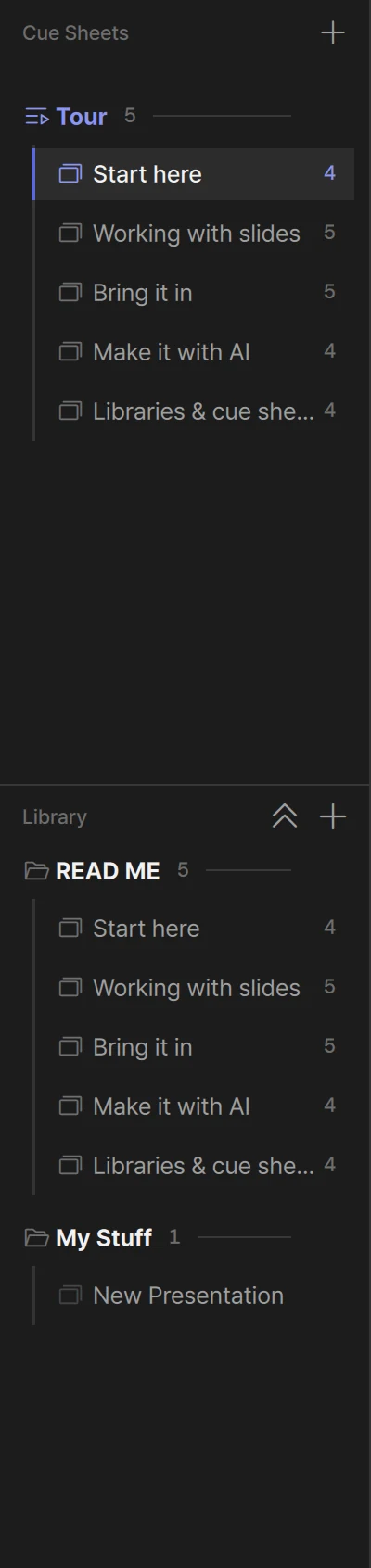
The first time you open LayerCue you get a READ ME library with five short guides, a Tour cue sheet that runs them in order, and a My Stuff library with an empty New Presentation to start in. The guides are yours to delete once you have read them.
The sidebar
Section titled “The sidebar”Cue Sheets sit at the top. The Library drawer sits below them — a flat panel across the width of the sidebar, under a thin line. Each part scrolls on its own, so a long library never pushes today’s cue sheet off the screen.
- The cue sheets get the room they need first, and the drawer takes what is left — at most half the sidebar, never less than about a fifth.
- The double-arrow button in the drawer’s header raises it to four-fifths of the sidebar, for a long sorting session. Press it again to lower it. The cue sheets stay in view either way, so you can still drag up into them.
| Row | What it shows |
|---|---|
| Library name | A folder icon, open or closed, and how many presentations are inside |
| Cue sheet name | A list icon and the name in indigo — brighter for the one you are in — and how many presentations are in the running order |
| Presentation | How many slides it holds, at the right edge. An empty one shows no number and a dimmer icon |
What a click does
- A library or cue sheet name — folds or unfolds it. What you see on the right does not change.
- A presentation in the Library — the right side shows that one presentation.
- A presentation in a cue sheet — the right side shows the whole cue sheet, one presentation after another, scrolled to the one you clicked. You stay in the cue sheet.
The same presentation can show up in both halves at once. The highlight — a lighter row with a thin indigo bar at its left — is on the one you clicked.
Making things
Section titled “Making things”| To make | How |
|---|---|
| A cue sheet | + beside Cue Sheets → New Cue Sheet |
| A library | + in the Library drawer’s header → New Library |
| A presentation | New Presentation in either + menu — or point at a library row and click the + at its right end, which picks that library for you |
A new cue sheet or library opens the Rename box straight away. Name it then — a pile of cue sheets called New Cue Sheet, New Cue Sheet 2, New Cue Sheet 3 is hard to tell apart on the day.
The New Presentation dialog
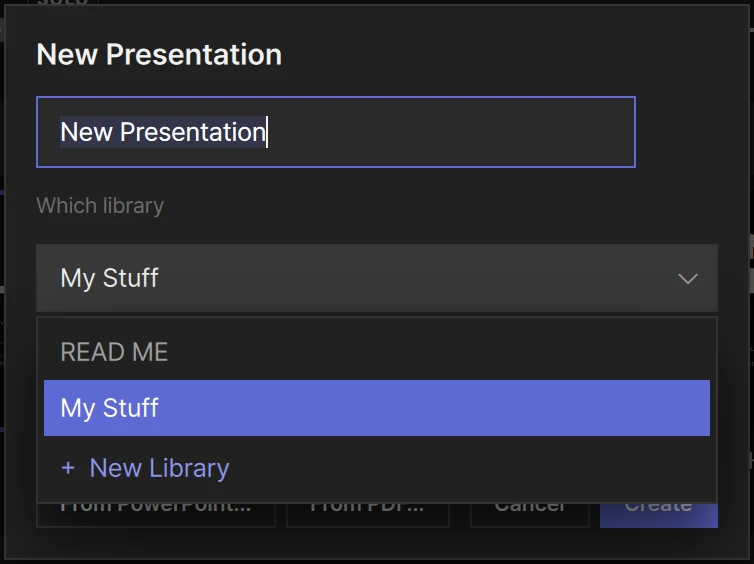
Section titled “The New Presentation dialog”| Name | Starts as New Presentation, already selected, so you can just type |
| Which library | Required. Starts on the library you are working in, otherwise the first one. + New Library at the bottom of the list makes one on the spot |
| Add to cue sheet (optional) | Starts on Don’t add — or on the cue sheet you are working in, when you opened the dialog from the Cue Sheets + |
| From PowerPoint… · From PDF… | Make it from a file instead, into the same library and cue sheet. See PowerPoint and PDF |
| Create | Makes it, adds it to the end of the cue sheet if you picked one, and selects it |
Building a cue sheet
Section titled “Building a cue sheet”There are three ways to put a presentation in:
- Right-click it → Add to Cue Sheet → the cue sheet.
- Drag it from the Library drawer up into the cue sheets. Drop it on a cue sheet’s name row to add it at the end, or between two rows to put it right there. Dropping in the empty space under the last cue sheet adds it to the end of that one. As soon as you drag above the drawer, it drops down out of the way, and it comes back when you let go.
- Pick the cue sheet in the New Presentation dialog.
If the cue sheet already holds that presentation, nothing is added — the dragged row just slides back.
Inside the cue sheets:
- Reorder — drag a row up or down. An indigo line shows where it will land.
- Move to another cue sheet — drag the row there. If that cue sheet already has it, the row slides back.
- Reorder the cue sheets — drag a cue sheet’s name row.
- Take one out — right-click → Remove from Cue Sheet. Only the running order changes; the presentation stays in its library.
Inside a cue sheet there is no Rename, Move to Library or Delete. Do those from the presentation’s row in the Library. A presentation has one name everywhere, so a rename made from one cue sheet would quietly change it in all the others.
Organising libraries
Section titled “Organising libraries”- Move a presentation to another library — right-click → Move to Library → the library. Or drag it onto a library’s name row (it goes to the end), or between two rows of another library (it goes there).
- Reorder presentations inside a library by dragging them.
- Reorder libraries by dragging their name rows.
Every presentation lives in exactly one library, so there is no “outside any library”. Libraries do not go inside each other.
Renaming
Section titled “Renaming”Right-click the row → Rename, type the name, then OK or Enter. An empty name is ignored.
Right-click menus
Section titled “Right-click menus”| Row | Menu |
|---|---|
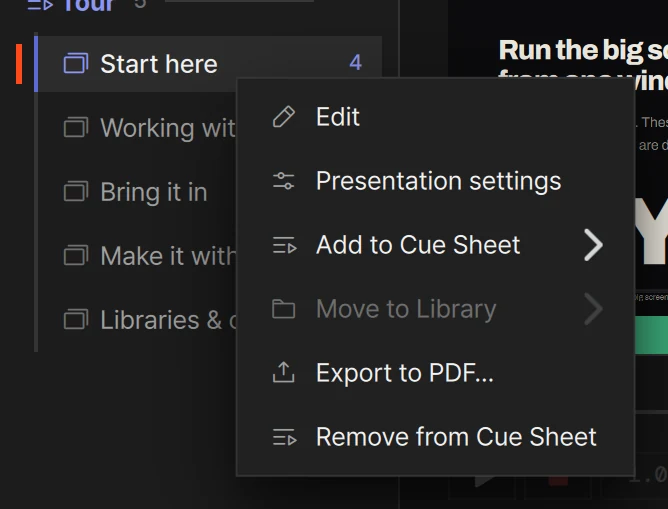
| A presentation, in the Library | Edit · Rename · Presentation settings · Add to Cue Sheet · Move to Library · Export to PDF… · Delete |
| A presentation, inside a cue sheet | Edit · Presentation settings · Add to Cue Sheet · Export to PDF… · Remove from Cue Sheet |
| A library or cue sheet name | Rename and Delete are the ones that apply |
- Edit opens the presentation in the slide editor.
- Presentation settings sets the fades, auto-dismiss and one layer for the whole presentation. See Presentation settings.
- Export to PDF… saves the presentation as a PDF. See PDF.
Deleting
Section titled “Deleting”Right-click the row → the red Delete.
| You delete | What goes | What stays |
|---|---|---|
| A presentation | It and its slides. It also leaves every cue sheet that held it | Video and image files |
| A cue sheet | The running order | Every presentation in it |
| A library | The library and every presentation in it. They also leave every cue sheet | Video and image files |
Files are not erased — they go to the Trash / Recycle Bin.
- A presentation with slides asks first: Delete this presentation?, with its name and how many slides it has. An empty presentation goes without asking.
- A library with presentations in it asks first: Delete this library?, with a red line saying the presentations inside go to the trash with it. An empty library goes without asking.
- The last library cannot be deleted. You will see The last library can’t be deleted.
⌘Z / Ctrl+Z brings any of these back. The files come back out of the Trash / Recycle
Bin, and a presentation goes back into the cue sheets it was in — as long as you have not
emptied the Trash / Recycle Bin in between.
These can all be undone with ⌘Z / Ctrl+Z: making, renaming,
moving, reordering and deleting presentations, libraries and cue sheets; adding to and
removing from cue sheets; and presentation settings. The notice says what it undid —
Undone — Delete cue sheet, for example.
Redo is ⇧⌘Z or ⌘Y / Ctrl+Y or Ctrl+Shift+Z.
The sidebar and the slides share one undo history of up to 50 steps, so ⌘Z / Ctrl+Z steps
back through both in the order you did them.
Hiding the sidebar
Section titled “Hiding the sidebar”- Click the sidebar button at the top left of the window (beside the traffic lights on a Mac),
or press
⌘\/Ctrl+\.⌘B/Ctrl+Bdoes the same while the slide list has the focus. - In Edit mode the sidebar is not shown.
- When the window gets too narrow, the sidebar hides itself. Turning it back on widens the window just enough to fit it.
- While it is hidden, a picker in the bottom bar shows the current presentation’s name. Click it to jump to any presentation, grouped by library.
- With Settings › General › Remember window layout on, the sidebar opens the way you left it.
Where it is kept
Section titled “Where it is kept”Each library is a real folder on this computer, and each presentation is one .pplist file
inside it, named after the presentation.
| Libraries live in | |
|---|---|
| Mac | ~/Documents/LayerCue/Library/ |
| Windows | C:\Users\<you>\LayerCue\Library\ |
Cue sheets are .ppcue files in CueSheets, next to Library. Copy a .pplist file into a
library’s folder and it shows up in that library. There is more in
Where your files live.
Also useful
Section titled “Also useful”⌘F/Ctrl+Ffinds presentations, cue sheets and libraries by name, and presentations by the text on their slides. See Find.- A connected AI app can make a cue sheet and fill it for you. See Connect an AI app.
How to put slides in and work with them is in Slides; how to send them to the stage is in Screens and going live.