FAQ
What is it?
Section titled “What is it?”It sends your presentation to the screen in layers.
Instead of flipping through one flat slide at a time, the screen is stacked, and each layer is handled on its own.
- Background: a video, a picture or a YouTube video, running underneath
- Foreground: the slide you send, such as text, a video or a picture
- Five overlays: lower thirds, logos and notices, on top of everything
Each layer goes up and comes down on its own. Change the slide and the background keeps
running; take the logo down and nothing else moves. To take something down, use the × beside a
layer in the layer column (Clear this layer), CLEAR at the top of that column
(Clear All), or F1–F4 (⌘1–⌘4 / Ctrl+1–Ctrl+4). Clicking a slide that is already
on screen leaves it there. More in Layers.
Your material goes into presentations, one for a song, a reading or a talk. A cue sheet lines presentations up in the order of the event. A slide can be text, a video, a picture or a YouTube video. PowerPoint and PDF files come in as slides too. Background music plays on its own, separately from the slides.
On your own screen you can see what is coming next; the audience only sees what you send. And it can go to several screens at once — see below.
Where do people use it?
Section titled “Where do people use it?”Anywhere there is a screen facing people and somebody has to run it.
| Worship services | Lyrics over a moving background, sermon notes, announcements |
| Events, large and small | Walk-in slides, speaker lower thirds, sponsor loops |
| Concerts & theatre | Looping scenery behind the act, surtitles above it, a blackout on the beat |
| Talks & classrooms | Clips, slides and YouTube references, in the order you’ll tell it |
| A presentation of your own | One laptop. Lay a background down and put your material on top |
| Shops & cafés | Menu boards, promos, a notice in the window |
How does it relate to professional tools like ProPresenter?
Section titled “How does it relate to professional tools like ProPresenter?”ProPresenter and the other professional tools are large, well-worn programs that have been refined in this field for years. LayerCue is aiming at the same place: the goal is to hold what those programs hold.
What differs is who gets to use it.
Professional tools are priced accordingly. For a team running services every week that price earns itself. For someone who runs a few events a year, or is putting together a talk on their own, it was never an option to begin with.
LayerCue is being built to be affordable for that person too.
What does it cost?
Section titled “What does it cost?”Nothing during the beta. There is no charge, on the Mac or on Windows.
The price of the finished version has not been set. The direction has: a price one person can pay without thinking twice. When it is decided, it will appear in What’s new first.
Do I need an account?
Section titled “Do I need an account?”Only for Settings and for sending us a message. Everything you use during a show works without one: slides, output, cues and music.
The first time you open Settings (the gear at the right of the status bar, at the bottom of the window), it asks you to Sign in with Google. Your browser opens; finish there and come back. In return for the free beta we ask for one thing: an email address. What we keep and why is in the Privacy Policy.
In Settings › Account you will also find:
- Keep settings in my account: off until you turn it on. Your settings are kept with your account, so signing in on another computer brings them along. Only settings travel. Presentations and media files never leave this computer, and things tied to this machine, such as file locations and the screen setup, stay put.
- Delete account: confirms in your browser, then deletes. Nothing is kept, not the email and not the licence.
Does it run on Windows?
Section titled “Does it run on Windows?”Yes. LayerCue runs on macOS and Windows.
| Mac | Windows | |
|---|---|---|
| System | macOS 13 or later | Windows 10 version 1809 or later |
| Computer | Apple silicon or Intel | 64-bit (x64) PC |
| Where to get it | The download page | The Microsoft Store |
| Updates | LayerCue tells you when there is one | The Store installs them |
The menus and messages come in English, Korean and Japanese. See below.
How do I install and update it?
Section titled “How do I install and update it?”On a Mac, download the build for your Mac (Apple silicon or Intel), open the disk image and drag LayerCue into the Applications folder. When you open LayerCue it checks for a new version, at most once a day. If there is one, an Update button appears in the status bar. Nothing is downloaded until you press it and choose Get it.
On Windows, install LayerCue from the Microsoft Store. The Store keeps it up to date; LayerCue does not look for updates itself.
Step by step, with what you see the first time you open it: Install.
Does it need an internet connection?
Section titled “Does it need an internet connection?”Not for the show. Slides, output, cues and music all run without one. Once you are signed in, LayerCue checks that on the computer itself, so Settings still opens when the connection drops.
These are the things that do use the internet:
- Signing in, in your browser
- Tell us what’s wrong, when you send a message
- Keep settings in my account, only if you turned it on
- YouTube: streaming a video (once for each monitor that shows it), downloading it, and fetching its title, thumbnail and chapters
- Checking for updates: for LayerCue itself on a Mac, and for the tool LayerCue uses for YouTube
- An AI app asking LayerCue to search YouTube or to add a picture from a web address
Can YouTube videos play without the internet?
Section titled “Can YouTube videos play without the internet?”Yes, once you download them. A YouTube slide streams until you do.
- Load the slide into Slide settings: click the name under its picture, or Option-click / Alt-click the card. (A plain click on the picture sends it out instead.)
- Press Download in Slide settings.
- Keep that slide in Slide settings until it finishes. The slide then switches to Downloaded by itself and plays from a file on your computer, like any other video.
The card’s thumbnail is kept on your computer too, so it still shows without a connection. More in YouTube.
Can I bring in PowerPoint or PDF files?
Section titled “Can I bring in PowerPoint or PDF files?”Yes, and they come in differently.
- PowerPoint (.pptx) comes in as slides you can edit. The text stays text. PowerPoint
does not need to be on this computer. Charts, SmartArt and animations do not come across, and
neither do videos or sounds; add those as slides of their own. An old
.pptfile has to be opened in PowerPoint or Keynote and saved as.pptxfirst. More in PowerPoint. - PDF pages come in as pictures. They keep the original’s look, but the text cannot be edited. More in PDF.
To bring one in, choose New Presentation and press From PowerPoint… or From PDF…, or drag the file onto the slide list.
It works the other way too: right-click a presentation in the sidebar and choose Export to PDF…. You get one slide per page, and the text of text slides stays text.
Can an AI make slides for me?
Section titled “Can an AI make slides for me?”Yes, with an AI app you already use. LayerCue has no AI of its own. Instead, an AI app on the same computer, such as Claude Desktop, LM Studio or Cursor, can use LayerCue as a tool. Connect it in Settings › AI apps, then ask in that app to build a cue sheet, split lyrics into slides, or restyle them.
- LayerCue and the AI app talk only on this computer, and only while LayerCue is open. What the AI app reads, such as lyrics and cue sheets, may be sent on to that AI service.
- The AI app has to be installed on this computer. Claude in a browser or on a phone cannot reach LayerCue, and neither can ChatGPT.
- The AI app’s own account and any fees are between you and that app.
- Every change the AI makes is one step you can undo with
⌘Z/Ctrl+Z. What it puts on the screen, though, cannot be undone.
No AI app on this computer? Right-click a text slide and choose Copy as HTML for AI, paste that into any AI chat, then paste the chat’s answer back into the slide list.
More in Connect an AI app.
Where are my presentations kept?
Section titled “Where are my presentations kept?”On your computer, in a LayerCue folder: inside Documents on a Mac, and at
C:\Users\<your name>\LayerCue on Windows. LayerCue does not upload them anywhere. Even
Keep settings in my account carries settings only.
What is inside that folder: Where your files live.
I don’t have a projector yet. Can I still get ready?
Section titled “I don’t have a projector yet. Can I still get ready?”Yes. Without a second screen, LayerCue starts on Virtual screen 1920×1080. Nothing goes out to it; it only sets the shape you build and preview for.
- Building for a 4:3 projector or a portrait screen? Add that size in Settings › Stage › Virtual screens, then make it Output 1’s screen: click the tab above the stage preview and pick it under Screen.
- If you plug the real screen in while a virtual screen is chosen, LayerCue switches to it by itself. Output 1’s power is on to begin with, so its output window opens there straight away — black until something goes on stage.
More in Screens and going live.
Can it use more than one screen?
Section titled “Can it use more than one screen?”Yes — that is Multi-Output. Add monitors in Settings › Stage › Output monitors — the audience screen, a stage monitor, the lobby — and give each one a name. The same stage goes out to all of them, and each shows the layers you choose: under each monitor’s preview in the top band, the Layers shown strip turns layers on and off for that monitor alone. A stage monitor for the singers can show the lyrics without the moving background behind them, for example.
Each monitor has its own power switch; there is no single output button. From Output 2 on, a monitor can also be on a virtual screen: it opens no window and shows only in the preview, so you can see what a monitor you do not have yet would show.
More in Multi-Output.
Which languages does it speak?
Section titled “Which languages does it speak?”English, Korean and Japanese. The first time, LayerCue follows your computer’s language: Korean or Japanese if that is what the system uses, English otherwise. To change it, go to Settings › General › Language. It applies at once.
It is a beta. Can I use it for a real event?
Section titled “It is a beta. Can I use it for a real event?”People do, and that is what it is being built for. Because it is a beta, please do these four things.
- Run the whole cue sheet once on the real screen before the event. Missing files and sound problems show up there. A card whose file cannot be found says File missing; press Locate file on it.
- Do not update right before the event. On a Mac, update the day before, not an hour before. On Windows the Microsoft Store installs updates; if you want to be sure what you will be running, get them from the Store the day before.
- If you use YouTube, download the videos in advance.
- Lock editing, so a stray click cannot change the running order. Press the pencil button (Lock editing) in the status bar, or turn on Settings › Stage › Lock editing while live to have it lock the first time something goes on stage while a monitor is on air. Sending slides out still works while it is locked.
When something goes wrong collects the problems that actually come up on the day, and where to look for each one.
What if the feature I need isn’t there?
Section titled “What if the feature I need isn’t there?”Tell us, and it becomes the next thing we build. Several features got here exactly that way.
In the status bar at the bottom of the app there is an envelope button, Tell us what’s wrong. Press it, choose Question, Idea or Bug, and write. Your message goes with the email you signed in with, the app version and your operating system, so we know which build you mean. You need to be signed in to send.
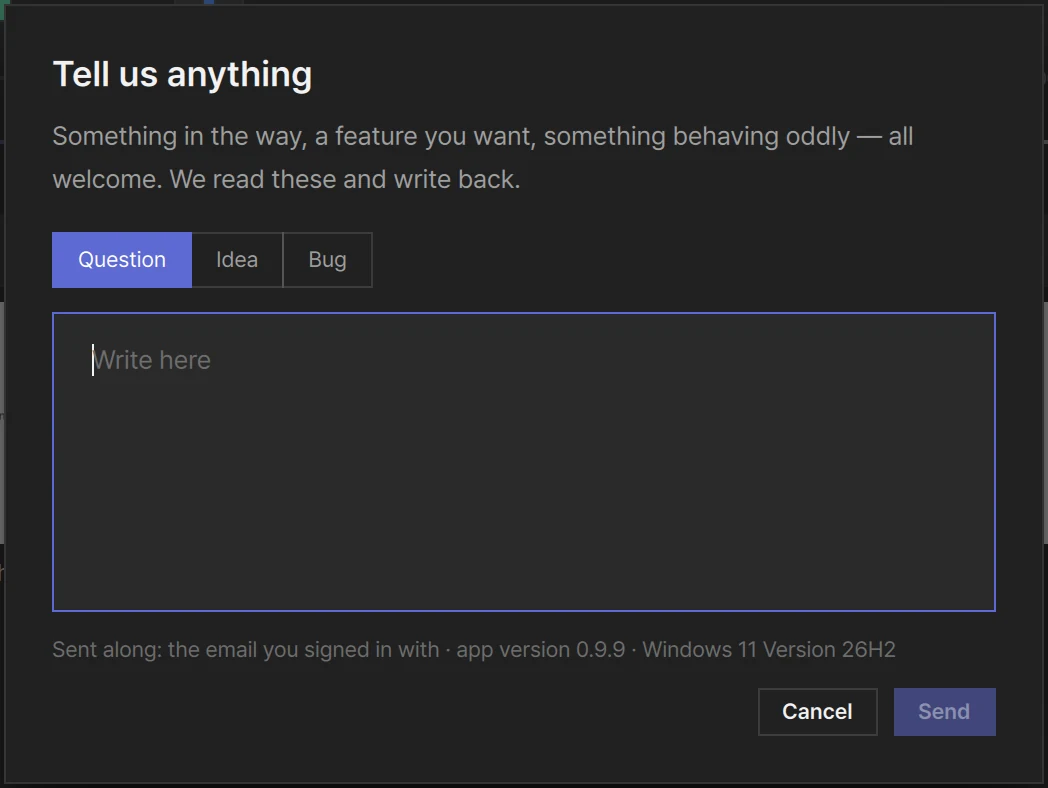
If email is easier, write to support@layercue.com.
What is coming next?
Section titled “What is coming next?”- Text animation: lines arriving one after another
- Fill & key output: sending alpha alongside the picture, so it can sit where a dedicated titler would
Sending to several screens at once used to be on this list; it is here now — see above. There is an order to the rest, but what comes first depends on what people ask for. If you need something, use the button above.