Find
Press ⌘F / Ctrl+F and a search panel opens beside the sidebar. Type part of a name, or a
few words you remember from the slides, and the results appear as you type.
Find has no button or menu — the shortcut is the only way to open it.
It works the same when the sidebar is out of sight — collapsed, or folded away because the window is narrow. Once you have hundreds of presentations, it is the quickest way to reach one.
What it looks through
Section titled “What it looks through”| Searched by | |
|---|---|
| Presentations | Their name, and the text on their slides |
| Cue sheets | Their name |
| Libraries | Their name |
The text on a presentation’s slides means:
- Slide names — the name on each slide card. For a picture or a video that is its file name until you rename it; for YouTube, the video’s title.
- Text slides — the words in every text box.
- PDF pages — a page comes in as a picture, but the text it held is kept for Find. A scanned PDF holds no text, so there is nothing to find inside its pages. See PDF.
Change something and Find knows at once — rename a slide or edit its text, and the new words are found straight away. Music tracks are not searched.
How it matches
Section titled “How it matches”- Capital letters do not matter.
- Spaces do not matter.
amazinggracefinds “Amazing Grace”, and a phrase still matches where it breaks onto the next line of a slide. - More words narrow it down. Type
grace amazingand you get only what has both words, in any order. For a presentation, the words all have to be in its name, or all in its slide text. - Korean initial consonants work. A word typed only in initial consonants is matched
against the first consonant of each syllable —
ㅈㅇㅅㅈㅇㄹfinds 죄에서 자유를.
Reading the results
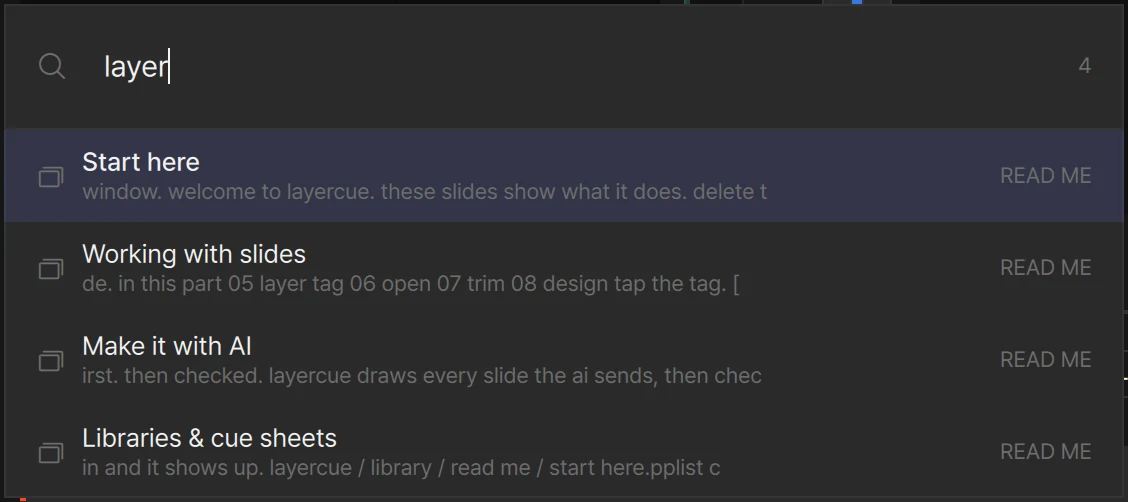
Section titled “Reading the results”The number at the right end of the field is how many were found.
Each row shows:
- An icon on the left — the same ones as the sidebar, so you can tell a cue sheet, a library and a presentation apart.
- The name. A presentation found by its slide text has a short excerpt from around the match under its name. (When the first word is all initial consonants, no excerpt is shown.)
- A library name on the right — the library the presentation lives in.
Cue sheets and libraries whose names match come first. Then presentations whose name matches, then presentations found only in their slide text. The list stops at 80 — if what you want is not there, add another word.
When nothing matches, the panel says Nothing found.
Going to a result
Section titled “Going to a result”The top result is highlighted as soon as it appears, so often you only type and press
Return / Enter.
| Key or action | What it does |
|---|---|
↑ ↓ |
Move the highlight |
Return / Enter |
Go to the highlighted result |
| Double-click a row | Go to that result |
| Click a row | Highlight it |
Esc, or click outside the panel |
Close without going anywhere |
Where you land depends on what you picked.
| You picked | What happens |
|---|---|
| A presentation | It opens, just as if you had clicked it in its library. The Library drawer at the bottom of the sidebar comes up if it was down, the library holding it unfolds, and the sidebar scrolls to its row |
| A cue sheet | It unfolds in the sidebar, and its whole running order opens |
| A library | It unfolds, and its first presentation opens |
The panel closes when you go somewhere, and it is empty again the next time you open it.
Dragging into a cue sheet
Section titled “Dragging into a cue sheet”The panel sits beside the sidebar, not on top of it. So while you build a running order you do not have to dig through the library: drag a presentation from the results straight into a cue sheet.
| Drop it on | What happens |
|---|---|
| A cue sheet’s row | It is added at the end of that cue sheet |
| Between the presentations of an unfolded cue sheet | It goes in at that spot. A line shows where |
| A library, or between a library’s presentations | The presentation moves to that library — the same as dragging it inside the sidebar |
- Only presentations can be dragged. Cue sheet and library rows in the results stay put.
- Hold it over a folded library for a moment and the library unfolds, so you can drop it exactly where you want. A folded cue sheet does not unfold this way — unfold it first if you want to drop between its presentations.
- A cue sheet holds each presentation once. If it is already in that cue sheet, nothing is added.
- The panel stays open after you drop, so you can drag in the next one.
- Adding to a cue sheet and moving to a library both undo with
⌘Z/Ctrl+Z.
How libraries and cue sheets work is in Libraries and cue sheets. Every shortcut in one place: Keyboard shortcuts.