Where your files live
Everything you make in LayerCue is kept as ordinary files in one folder on this computer: your presentations, your cue sheets, the Music list, and LayerCue’s own copies of your videos, pictures and music. To back up your work, copy that folder.
The LayerCue folder
Section titled “The LayerCue folder”| Where it is | |
|---|---|
| Mac | ~/Documents/LayerCue — a LayerCue folder in your Documents |
| Windows | C:\Users\<you>\LayerCue — a LayerCue folder in your user folder |
On Windows it is not in Documents, on purpose. Windows often keeps Documents in OneDrive, which uploads big videos, can leave only a placeholder of an older file on the PC until it is opened, and can lock a file while it syncs. A video that starts downloading the moment you play it — or will not open at all without the internet — is the last thing you want on the day.
Ways to open it:
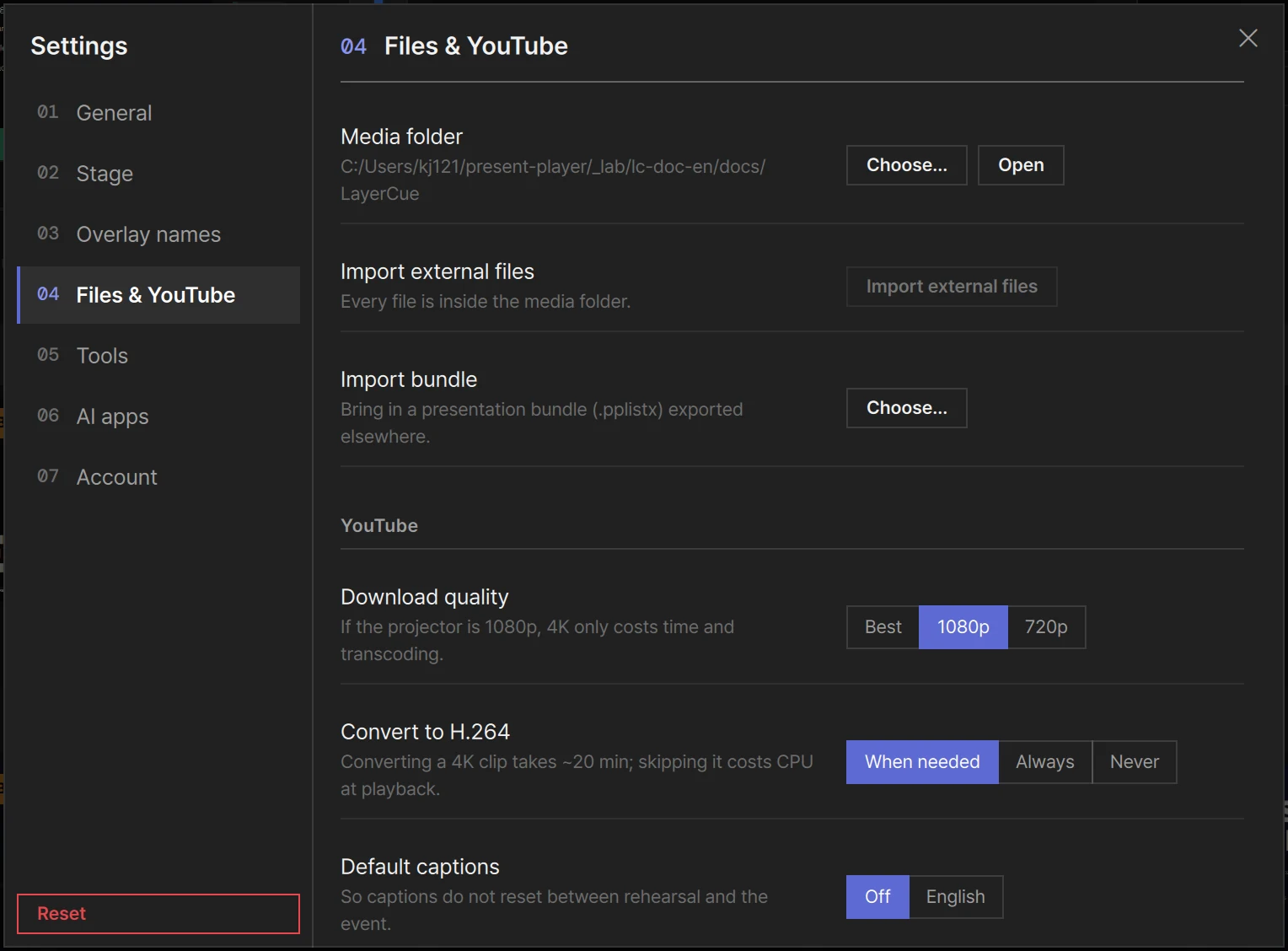
- Settings › Files & YouTube › Media folder › Open opens it in the Finder / File Explorer — as long as you have not chosen a different media folder.
- Right-click a slide → Show in Finder / Show in Explorer opens the folder holding that slide’s file, with the file selected. Slides with no file of their own, such as a text slide with nothing behind it or a YouTube slide that streams, do not have this item.
- On Windows you can also type
%USERPROFILE%\LayerCueinto File Explorer’s address bar.
What is inside
Section titled “What is inside”| What it holds | |
|---|---|
Library |
One folder for each library, named after it. Inside, one .pplist file for each presentation, named after the presentation |
CueSheets |
One .ppcue file for each cue sheet. It lists which presentations come in what order — the presentations themselves stay in Library |
Videos · Images · Music |
LayerCue’s own copies of your media — see below |
music.json |
The Music list: its folders, tracks and each track’s settings |
index.json |
The order of libraries and presentations in the sidebar, plus a summary that lets LayerCue open quickly |
Backups |
The previous version of each presentation and of the Music list — see Backups |
thumbs |
Card pictures LayerCue took from the preview for particular slides, for example with Set as thumbnail |
Some of these appear only once there is something to put in them.
Rename a library in LayerCue and its folder in Library is renamed with it. Rename a
presentation and its .pplist file follows.
LayerCue saves on its own, moments after each change. There is nothing to save by hand.
Media files
Section titled “Media files”LayerCue works from its own copy of each file. When you add a video, a picture or music, it copies the file into the media folder and plays the copy. The original you added it from is not touched, so you can move or delete it without breaking the slide.
| Folder | What goes in |
|---|---|
Videos |
Videos you add, and downloaded YouTube videos (named yt- and the video’s ID) |
Images |
Pictures you add, pictures pasted from the clipboard (paste-….png), pictures from PowerPoint and PDF imports, and pictures an AI app brings in |
Music |
Tracks in the Music list, and music slides |
- A copy keeps the original’s name. When that name is already taken, LayerCue either asks you or adds a number — see Slides.
- Out of the box the media folder is the LayerCue folder. You can choose another one in
Settings › Files & YouTube › Media folder. Then
Videos,Images,Music, the Music list and its backup are kept there, and everything else stays in the LayerCue folder. - A file that sits outside the media folder — one still being copied, or one left behind in an old media folder — plays from where it is. If that is an external disk or a USB stick that comes loose, it stops on stage. Import external files on the same page copies them in. See Settings.
Changing things from the Finder / File Explorer
Section titled “Changing things from the Finder / File Explorer”While LayerCue is open it keeps an eye on the library folders inside Library.
| What you do | What LayerCue does |
|---|---|
Copy a .pplist into a library’s folder |
It shows up in that library straight away |
| Copy a presentation’s file that is already in LayerCue | No second presentation appears — the copy holds the same presentation, so it is not added twice |
Delete a .pplist |
The presentation disappears from LayerCue too |
Rename a .pplist |
The presentation keeps its name, and LayerCue gives the file the presentation’s name again |
Make a new folder inside Library |
It becomes a library the next time LayerCue opens |
Copy a .ppcue into CueSheets |
It shows up the next time LayerCue opens. It lists presentations, so they have to be in Library too |
Rename, move and delete presentations in LayerCue itself. There, a deletion goes to the
Trash / Recycle Bin and ⌘Z / Ctrl+Z brings it back. See
Libraries and cue sheets.
A .pplist that LayerCue can’t read as its own — a damaged one, or one written by a different
program — is left alone. It is not shown, not changed and not deleted.
Backups
Section titled “Backups”Each time LayerCue saves a presentation, it first puts the version it is about to replace in
Backups, in a folder with the same library name. It does the same for the Music list.
It is one step back, not a history. Because LayerCue saves moments after each change, the
backup is the version from just before your latest change. It is a safety net for a file that
gets damaged. To go back through your work, use ⌘Z / Ctrl+Z.
If a presentation file is ever damaged — the presentation no longer shows up — put the backup back:
- Quit LayerCue.
- Copy the file from
Backupsinto the same library’s folder inLibrary, replacing the damaged one. - Open LayerCue.
Backing up
Section titled “Backing up”Quit LayerCue, then copy the whole LayerCue folder to an external disk or somewhere else safe. If you chose a different media folder, copy that one as well.
The day before an event is a good time: open Settings › Files & YouTube first, and if Import external files is lit, press it so that every slide’s file is in the folder you are copying.
Moving to another computer
Section titled “Moving to another computer”These steps are for moving between two Macs or between two PCs.
- On the old computer, open Settings › Files & YouTube. If Import external files is lit, press it, and wait until no card says Copying. When the page says Every file is inside the media folder., you are ready.
- Quit LayerCue and copy the LayerCue folder — and your other media folder, if you chose one — to an external disk.
- On the new computer, install LayerCue. If you have opened it already, quit it.
- Put the folder in the same place:
~/Documents/LayerCueon a Mac,C:\Users\<you>\LayerCueon Windows. If a LayerCue folder is already there, replace it — or move it somewhere else first, if it holds anything you want to keep. - Open LayerCue. Your libraries, presentations, cue sheets and Music list are all there. (If you had chosen a different media folder, the Music list comes back after step 6.)
- If you had chosen a different media folder, choose the copy of it in Settings › Files & YouTube › Media folder › Choose…, then quit LayerCue and open it again.
Videos, pictures and music are found even if the path has changed — say, your user name is
different on the new computer. LayerCue looks for each one by its folder (Videos, Images,
Music) and its name inside the media folder.
- Downloaded YouTube videos are the exception. If the path has changed, those slides play from YouTube again, which needs the internet. Check them before the event.
- A card that still says File missing had its file outside the media folder. Press Locate file on the card, or right-click it → Locate file, and point it at the file on this computer. See Slides.
Your settings are not in the LayerCue folder, so they do not come along with it. With Keep settings in my account on, most of them follow you when you sign in on the new computer — but not what belongs to each computer, such as the media folder location, the virtual screens and the output monitors. Set the monitors up again in Settings › Stage › Output monitors.
What is kept somewhere else
Section titled “What is kept somewhere else”The card pictures LayerCue makes by itself and a few other things LayerCue can make again, along with its log file, are kept in the system’s own app-data area, not in the LayerCue folder. You don’t need to copy or back them up.
How libraries and cue sheets work is in Libraries and cue sheets; everything in Settings › Files & YouTube is in Settings.