When something goes wrong
Find what you are seeing and follow it. Each section points to the page that explains that part of LayerCue in full.
LayerCue never falls back to the screen you work on. If it did, an unplugged projector would leave your own screen covered.
You see All monitors are off
Section titled “You see All monitors are off”You put something on stage while every monitor was switched off. LayerCue says so once per session: All monitors are off — turn one on with the power button above the preview. Switch on the monitors you want.
The output stopped by itself
Section titled “The output stopped by itself”If a monitor’s screen is unplugged while it is on air, LayerCue takes that window down and says Output screen disconnected — plug it back in and it comes right back. If other monitors are still on air, the notice names the one that lost its screen. Check the cable or adapter. The power stays on, so the window opens again by itself as soon as the screen is back.
Your own screen is covered
Section titled “Your own screen is covered”A monitor is set to the screen you work on, and its power is on. Move the mouse on the covered screen: a round ✕ appears at the top right for about two seconds. Click it and that monitor’s power goes off — its window closes, and nothing else changes. Then choose the right screen in its tab’s popover or in Settings › Stage › Output monitors.
LayerCue never covers the screen its own window is on by itself — only when you switch that monitor on yourself. If you choose that screen for a monitor that is on, LayerCue switches the monitor off and says “…”: that screen has the LayerCue window, so its output is off — switch the power on again to cover it. A monitor set to that screen also starts switched off when LayerCue opens.
The projector’s resolution changed (Mac)
Section titled “The projector’s resolution changed (Mac)”On a Mac, LayerCue switches each monitor whose power is on to its sharpest resolution, where one pixel drawn is one pixel on the panel. It changes that monitor’s own system resolution; your main display is never touched.
The resolution goes back when you turn that monitor’s power off, and when you quit LayerCue. If LayerCue stopped before it could put it back, log out and in again. There is no setting for this any more — see Settings.
Something went out that you did not mean to
Section titled “Something went out that you did not mean to”One click sent it to the audience
Section titled “One click sent it to the audience”Clicking a thumbnail sends that slide out. To look at a slide without sending it:
| What you want | How |
|---|---|
| Load it into Slide settings without sending it | Click the name line under the thumbnail, or Option-click / Alt-click the card |
| Send it out | Click the thumbnail · Enter · right-click → Present |
That is what Option + slide to load (on Windows, Alt + slide to load) next to the Slide settings heading means.
The arrow keys moved the audience screen
Section titled “The arrow keys moved the audience screen”The arrow keys, Home, End, Page Up and Page Down send out the slide they land on.
To move around without sending anything, hold Option / Alt while you use them. Hold Shift to
widen the selection instead. Neither changes the audience screen.
Clicking a live slide does not take it down
Section titled “Clicking a live slide does not take it down”That is deliberate. Clicking a slide that is already live does nothing — it stays up, and a video that is playing does not jump back to the start. To take it down:
| Way to take it down | Mac | Windows |
|---|---|---|
| The × beside that layer in the layer column (Clear this layer) | ||
| CLEAR at the top of the layer column (Clear All) | F1 · ⌘1 |
F1 · Ctrl+1 |
| The foreground only | F2 · ⌘2 |
F2 · Ctrl+2 |
| The background only | F3 · ⌘3 |
F3 · Ctrl+3 |
| All five overlays | F4 · ⌘4 |
F4 · Ctrl+4 |
On many Mac keyboards F1 and F2 change the screen brightness instead, so use ⌘1–⌘4.
The red ■ beside ▶ under the preview takes down only the layer the controls are working on — the one with the white outline in the layer column — when that layer holds a video or YouTube.
A layer that comes down comes off every monitor at once. To keep something off one monitor only, turn that layer off in that monitor’s Layers shown strip instead.
To play a video from the start again, double-click its thumbnail.
It went out on the wrong layer
Section titled “It went out on the wrong layer”- The presentation has a layer of its own. When Layer for this list is set, every slide in that presentation goes to that layer. Set it back to Per slide to let each slide decide. See Presentation settings.
- The slide can’t go on that layer. You see This slide can’t go on that layer — showing it as the foreground.
How layers work is in Layers.
It shows on one monitor but not on another
Section titled “It shows on one monitor but not on another”Each monitor shows only the layers lit in its Layers shown strip — the seven cells B F 1 2 3 4 5 under its preview in the top band. A layer whose cell is off stays off that monitor; click the cell to light it. A background slide is split in two — its backdrop sits on B, its text and pictures on F — so with B off that monitor shows the words without the backdrop. A foreground or overlay slide goes out whole, backdrop and all. See Multi-Output.
An overlay went away by itself
Section titled “An overlay went away by itself”Auto-dismiss is set for that presentation, so its overlays take themselves down after that many seconds. Turn Auto-dismiss off in that presentation’s settings and overlays stay until you clear them.
If you see Cleared 1 overlay(s) (or another number), the presentation’s Layer for this list was changed while its slides were up as overlays. Slides that are no longer overlays fade out.
A change did not do what you expected
Section titled “A change did not do what you expected”You changed a fade in Settings and the presentation did not follow
Section titled “You changed a fade in Settings and the presentation did not follow”Crossfade, Fade out and Auto-dismiss in Settings › Stage are defaults. A presentation follows them until you give it a value of its own; after that it keeps its own value — Presentations with their own value keep it.
Open that presentation’s Presentation settings. A value that follows the default is dimmed; a value of its own is bright, with a Reset to default button beside it. Press it and the presentation follows the default again. See Presentation settings.
Nothing happens when you edit
Section titled “Nothing happens when you edit”Editing is locked. You see Editing is locked while presenting when you try to add, delete or move slides. Look at the lock in the status bar: click it (Unlock editing) to unlock, and click it again (Lock editing) to lock.
With Settings › Stage › Lock editing while live on (it is off by default), LayerCue locks editing the first time something goes on stage while a monitor is on air, and unlocks it when no monitor is on air any more.
While editing is locked, ⌘Z / Ctrl+Z and Paste style do nothing. Choosing slides and
sending them out still work.
⌘Z / Ctrl+Z does nothing
Section titled “⌘Z / Ctrl+Z does nothing”| Why | What to do |
|---|---|
| Editing is locked | Unlock it with the lock in the status bar |
| You are in the slide editor | There it only undoes changes to that slide. When there are none you see Nothing to undo on this slide. Leave the editor to undo things in the slide list |
| It was in the music list | Nothing in the music list can be undone |
Undo goes back up to 50 steps.
You deleted something
Section titled “You deleted something”| What you deleted | Back with ⌘Z / Ctrl+Z? |
|---|---|
| Slides | Yes. The notice that appears also has an Undo button |
| Slide and file (to Trash) | The slide, yes. On a Mac the file comes back too. On Windows the file stays in the Recycle Bin — restore it from there |
| A presentation | Yes |
| A library | Yes — its presentations come back from the Trash / Recycle Bin with it |
| A cue sheet | Yes. Deleting a cue sheet never deletes the presentations in it |
| A track or a folder in the music list | No |
List only and Folder only (keep files) in the music list take effect at once, without asking. The music files themselves stay where they were. See Music.
To put a presentation file back by hand, see Where your files live.
A file will not go in or will not play
Section titled “A file will not go in or will not play”| What you see | What it means |
|---|---|
| … isn’t a format we can play, so it wasn’t added | LayerCue left that file out. Convert it to a common format first |
| …: can’t play this — … | The file went in but could not be played. The layer’s name comes first; the reason follows the dash |
| Several videos are playing — playback may stutter | More than three videos are playing at once across the layers, videos in video boxes included. The overlay numbers follow in brackets. Take some down |
| A red card that says File missing | The original file is not where it was |
A card says File missing
Section titled “A card says File missing”Right-click the card → Locate file and point to the file. If the file you pick has the same name, other slides that used the same file are relinked with it too, and a message tells you how many. A file with a different name replaces it on this slide only.
A track in the music list whose file is missing has Relink file instead. Use it rather than deleting the track and adding it again: relinking keeps the settings you made for that track.
PowerPoint and PDF
Section titled “PowerPoint and PDF”| What you see | What to do |
|---|---|
| Old PowerPoint files (.ppt) can’t be imported directly — open it in PowerPoint or Keynote, save it as .pptx, then import that | Do exactly that |
| PowerPoint files are imported one at a time | Only the first file went in. Import the others one by one |
| Already importing a PowerPoint file | Wait for the import that is running to finish |
| This PDF is password-protected — remove the password and try again | Save a copy without the password and import that |
More in PowerPoint and PDF.
YouTube
Section titled “YouTube”The Download button is dimmed
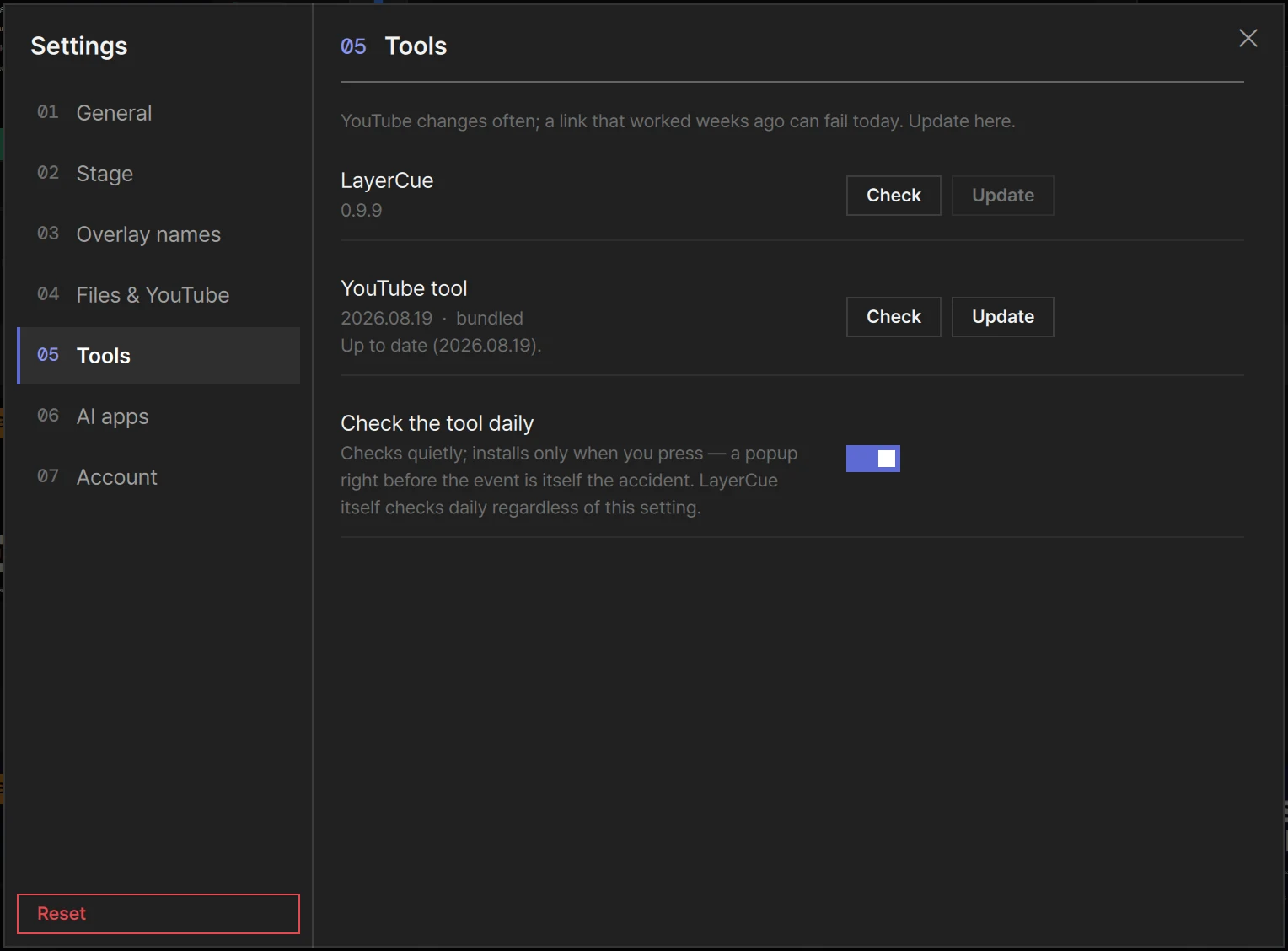
Section titled “The Download button is dimmed”The YouTube tool was not found. Open Settings › Tools: under YouTube tool it says Not found. Press Update to fetch it.
A link that worked before fails today
Section titled “A link that worked before fails today”You see YouTube download failed — and a reason. YouTube changes often, and the tool has to keep up. In Settings › Tools › YouTube tool, press Check, then Update. If the new version makes things worse, Revert takes you back.
With Check the tool daily on, LayerCue only tells you when a new version is out; it installs nothing until you press Update. Do it the day before an event, not in the middle of one.
Streaming YouTube can’t do some things
Section titled “Streaming YouTube can’t do some things”| While it plays as Streaming | Once it is Downloaded |
|---|---|
| No cropping. The crop window says Can’t crop this kind (download YouTube first), and the slide editor says YouTube streaming can’t be cropped — Fill and Stretch work (downloaded files can be cropped) | Crop works |
| Filling the screen, it takes no text: Text can’t go over full-screen YouTube streaming. Put it in a box with Make it a video box in the editor’s background row, and text boxes and shapes can go over it | It behaves like any video |
Press Download, then choose Downloaded in the preview, and the slide behaves like an ordinary video. If the venue’s internet is uncertain, download beforehand. See YouTube.
The preview is covered while YouTube is live
Section titled “The preview is covered while YouTube is live”That is normal. While a streaming YouTube slide is on stage, the preview of the monitor it plays on shows YouTube is playing on the output screen, with the quality it is playing at. The YouTube player itself is on the output screen, so it is not shown twice.
To watch it in LayerCue, press Bring to preview: the player moves into the preview. While it is there, it is not on the output screens. Press Send back to output to return it. It also goes back by itself when the YouTube slide comes down.
YouTube on several monitors
Section titled “YouTube on several monitors”Streaming YouTube goes to every monitor that shows its layer. One of them plays the sound; the others are silent copies that keep to its position. Each copy streams the video separately, so a slow connection is felt more with every monitor — download the video beforehand if the internet is uncertain. If one monitor does not show it, check that monitor’s Layers shown strip. See Multi-Output.
No sound
Section titled “No sound”Work down in order:
- MUTE under the meter — is it red? It silences everything that goes out.
- The master fader on the meter — is it all the way down?
- The sound device in the status bar — does it say Not connected?
- The layer — click it in the layer column beside the preview and check the volume at the right end of the control row under the preview.
- The slide — its volume in Slide settings. A video that fills the background starts at 0%, so raise it there if it should be heard (a video in a video box keeps its sound).
- The music — Settings › Stage › Music while video plays set to Lower or Mute turns the music down whenever something with sound is on stage.
Each volume is explained in Sound and the meter.
Windows: Cloud fonts are unavailable
Section titled “Windows: Cloud fonts are unavailable”If the font list says Cloud fonts are unavailable, the Windows Font Cache Service is turned off, and LayerCue can’t see fonts from a cloud font service until it is on again.
Press Turn it on (needs admin) and allow it. When you see Font Cache Service turned on, choose Restart to restart LayerCue now, or Later. Everything you have open is already saved.
Settings asks you to sign in
Section titled “Settings asks you to sign in”A panel covers the Settings window until you have signed in once: Sign in once to use the beta. Press Sign in with Google, finish in your browser, and come back. You need an internet connection for this. See Settings.
An AI app can’t find LayerCue
Section titled “An AI app can’t find LayerCue”Open Settings › AI apps and read the lines under the app.
| What it says | What to do |
|---|---|
| Registered — not attached yet. Quit that app completely and reopen it. | Quit the AI app completely and open it again. The next line says how: on a Mac with ⌘Q; on Windows, right-click its icon in the tray at the bottom right of the taskbar and quit — closing its window is not enough |
| Registered to a LayerCue in another location — reconnect | Press Reconnect, then quit the AI app completely and open it again |
| Connected — LayerCue tools are ready in this app | It works. Ask the AI app again |
LayerCue itself has to be open for an AI app to use it. ChatGPT can’t attach programs on your computer yet, so it can’t use LayerCue; on the OpenAI side, Codex can. See Connect an AI app.
Updates
Section titled “Updates”Windows: LayerCue updates through the Microsoft Store. Pressing Check in Settings › Tools just says Updates come automatically from the Microsoft Store.
Mac: LayerCue checks for a new version by itself once a day. To check now, open Settings › Tools and press Check on the LayerCue row, then Update.
If the download fails you see Couldn’t download it. and why. Press Try again. If it keeps failing, press Get it from the site: the LayerCue website opens in your browser, and you can download it from the download page.
Things LayerCue does not do
Section titled “Things LayerCue does not do”These are not faults — you will not find them however hard you look.
| A separate show on each screen | All monitors share one stage. What differs is which layers each one shows: put something on a layer of its own — an overlay, say — and choose in each monitor’s Layers shown strip where it appears. See Multi-Output |
| Build or entrance animations for text and objects on a slide | Not there. Slides change with a crossfade |
| ChatGPT | It can’t attach programs on your computer yet. Codex and other AI apps can — see Connect an AI app |
One more pass before the event
Section titled “One more pass before the event”If it still does not work
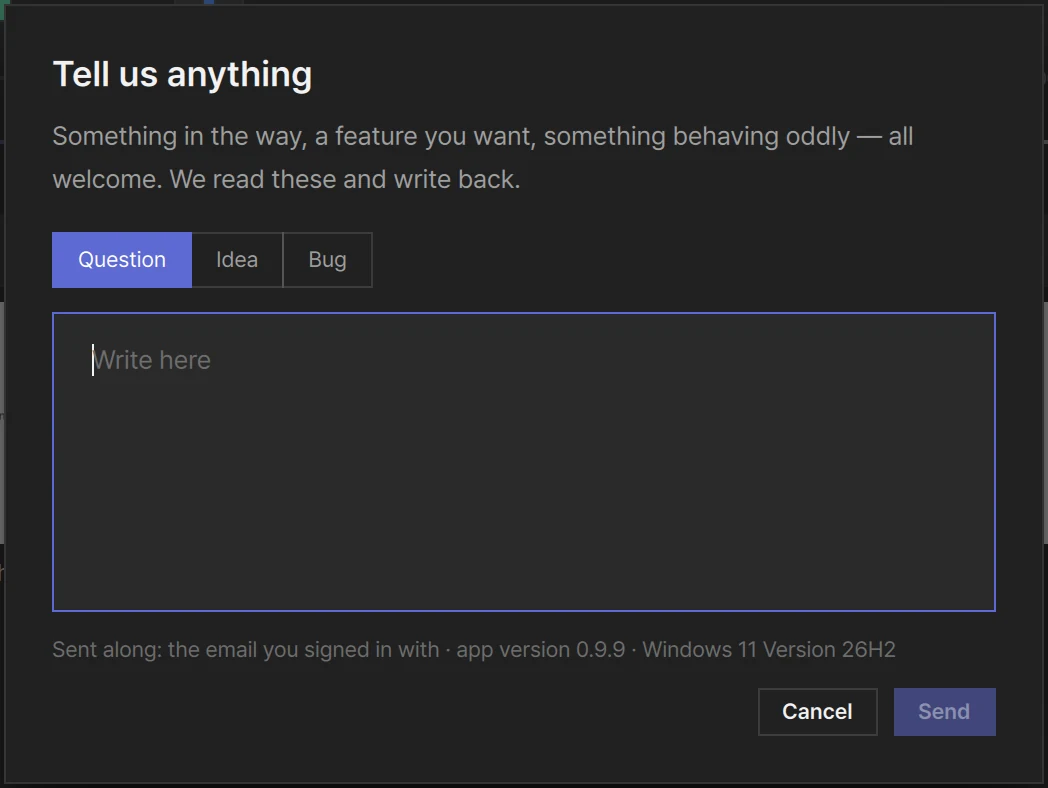
Section titled “If it still does not work”Press Tell us what’s wrong in the status bar. Choose Question, Idea or Bug, write what happened and press Send. The form shows what is sent along with it: the email you signed in with, the app version and your operating system. There is a daily limit; when you reach it you see That is enough for today — try again tomorrow.
Or write to support@layercue.com. These help us solve it faster:
| What to include | Example |
|---|---|
| What you were trying to do | “I was sending a YouTube slide to an overlay” |
| The message on screen, word for word | “YouTube download failed — …” |
| Mac or Windows, and the system version | macOS 15 · Windows 11 |
| Whether it happens every time or happened once |
If an event is riding on it, include its date and time.