YouTube
A YouTube video can be a slide like any other. It plays in one of two ways: Streaming straight from YouTube, or Downloaded to this computer and played from the file. Streaming is quicker to set up; downloaded is safer. If a video has to play on the day, download it.
Adding a YouTube video
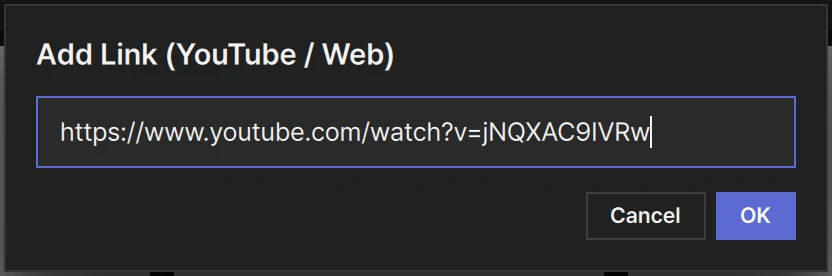
Section titled “Adding a YouTube video”Press the chain button Link on the presentation’s title bar, or right-click the title bar and choose Link. The Add Link (YouTube / Web) window opens. Paste the address and press OK. The new slide goes to the end of that presentation, with the badge YouTube.
Any of these works: youtu.be/… · youtube.com/watch?v=… · /embed/… · /shorts/… · /live/… —
or just the 11-character video ID.
Until YouTube’s title arrives, the slide is named with the video ID. The title fills itself in a moment later, when the internet is there. The card shows YouTube’s thumbnail, cut to the shape of the video and framed the way it will go out. LayerCue keeps a copy once it has shown it, so the card keeps its picture without the internet.
Pasting works too. Copy the address and press ⌘V / Ctrl+V while the slide list has focus.
Here the address has to start with http:// or https://. The slide goes in right after the selected slide, or at the end if none is selected.
An AI app connected to LayerCue can also search YouTube and add the video you choose — see Connect an AI app.
Streaming or downloaded
Section titled “Streaming or downloaded”A new YouTube slide streams. Download it and it can play either way — you switch with two chips in Slide settings.
| Streaming | Downloaded | |
|---|---|---|
| Internet on the day | Needed | Not needed |
| On stage | One streaming YouTube at a time, on any layer | Like any video file — on any layer, alongside others |
| Scale | Fill, Stretch and Fit — no Fit + blur bg (a slide that was set to it shows as Fit) | All four, as for a video |
| Crop & fit (crop, Anchor) | — (the picture always sits in the middle) | ○ |
| In a video box | ○ — without a crop or a blurred margin | ○ |
| Text boxes and shapes on top | Once it sits in a video box | ○ |
| Captions · Audio (dubbed tracks) | ○ | — (the file has no captions and one sound track) |
| Set as thumbnail | — (the card shows YouTube’s thumbnail) | ○ |
| Sound goes to | The device chosen in the speaker box in the status bar — see Sound | The same device |
Playback speed, In point · Out point, Slide volume, Repeat and chapters can be set either way.
Downloading
Section titled “Downloading”- Load the slide into Slide settings on the right: Option-click / Alt-click its card, or click the name row under the card. (A plain click on the thumbnail sends it out instead.)
- Press Download beside the picture in Slide settings.
- Downloading 42% counts up. If the video needs converting, Converting 42% follows. The ✕ beside it stops the download.
- When it is done, the slide switches to Downloaded by itself, and its card badge reads YouTube ↓.
Once a slide has a download, Download gives way to two chips, Streaming and Downloaded. The lit one is how the slide plays. Switch whenever you like. Go back to Streaming and the card shows YouTube’s thumbnail again.
The file goes into the media folder. Where that is: Where your files live.
Removing the download
Section titled “Removing the download”Right-click the card → Delete → Delete download. It appears only on a YouTube slide that has a downloaded file. The slide stays and goes back to streaming. The file goes to the Trash / Recycle Bin, unless another slide still uses it.
Downloading again always fetches a fresh copy with the settings you have now. It never reuses the old file.
Download settings
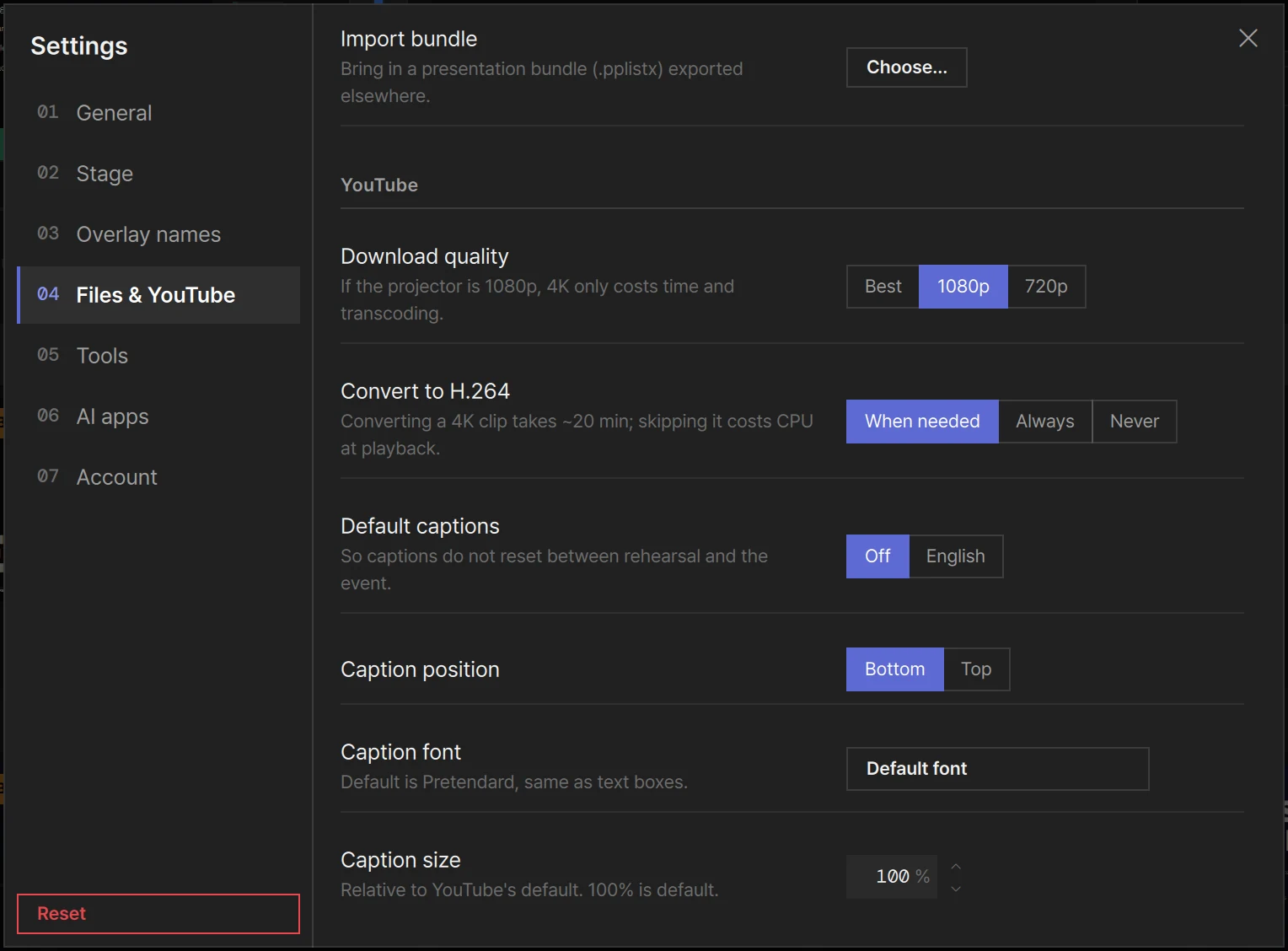
Section titled “Download settings”In Settings › Files & YouTube. They apply to the next download; videos already downloaded keep their file.
| Setting | Choices | What it does |
|---|---|---|
| Download quality | Best · 1080p (the default) · 720p | The highest resolution it fetches. If the video does not go that high, it takes the best it has |
| Convert to H.264 | When needed (the default) · Always · Never | Turns the downloaded video into H.264 so it plays lightly |
When needed converts only when the video did not arrive as H.264 (or HEVC). Up to 1080p it usually arrives as H.264, so there is nothing to convert; 4K usually needs it. The app sums up the trade-off itself: Converting a 4K clip takes ~20 min; skipping it costs CPU at playback. And for quality: If the projector is 1080p, 4K only costs time and transcoding.
On stage
Section titled “On stage”Sending a YouTube slide out, and taking it down, work as for any slide — see Layers.
- It can go on any layer — background, foreground or an overlay. The layer chip on the card works as it does for a video.
- Only one streaming YouTube can be on stage at a time. LayerCue has a single YouTube player, shared by every layer (other monitors get silent copies of it — see below). To show two YouTube videos together, download them — a downloaded one plays like any video file.
- It can play in a video box. In the editor’s Background row, Make it a video box shrinks the YouTube into a box you can move and resize, with text and shapes around it and on top of it. The box stays when you switch between Streaming and Downloaded. See Design tools.
- On the background, a streaming YouTube comes in with a cut, not a crossfade. The one player cannot overlap with itself.
- Like any slide, moving it to the background sets its Slide volume to 0 the first time; after that it gets back the volume you last gave it there.
- Repeat on a streaming YouTube jumps back to where it started, just before the end. There is no overlap, so Loop crossfade does not apply. A downloaded one repeats like any video.
- When you take it off the foreground, its sound fades out with the picture, over the presentation’s Fade out time (Presentation settings).
- YouTube’s own controls stay off the stage — no title bar, progress bar, or suggested videos at the end or on pause. Use LayerCue’s controls under the preview.
While it is on an output screen
Section titled “While it is on an output screen”When a monitor that shows the YouTube’s layer has its output window open, a streaming YouTube is not shown in the preview inside the main window. The player itself has moved to that output screen — it moves rather than reloads, so the video carries on without a break. In its place is a translucent cover reading YouTube is playing on the output screen. If the YouTube sits in a video box, a red frame marks the box’s place on each preview whose monitor shows it. When no output window shows it — the monitors are off, or it goes to a virtual screen — the YouTube plays right there in the preview.
The cover holds the controls you need for it:
| Bring to preview | Moves the player itself into this preview, so you can watch it here. While it is in the preview, the output screens don’t show it — as its tooltip says, Leaves the output screens until you send it back. Send back to output, at the top left of the preview, returns it |
| Quality | What is going out right now, such as Quality 1080p. YouTube chooses it by itself. Press Auto beside it for the qualities this video has, and pick one |
| Chapters | Only if the video has chapters. Pick one by name from the list, or step with the previous and next buttons |
You can still work on another YouTube while one is out: load it into Slide settings, play it, set its in and out points. While a YouTube plays on the foreground, that preview stays silent, so the sound never doubles.
On several monitors
Section titled “On several monitors”If more than one monitor shows the layer the YouTube is on, every one of them shows it. One of them has the real player, with the sound; each of the others gets a silent copy that keeps to its position and follows its captions, Scale and quality. Each copy loads the video on its own, so the internet carries it once per monitor. The cover above shows on one preview only — that of the monitor with the sound. More in Multi-Output.
Captions, dubbed audio and chapters
Section titled “Captions, dubbed audio and chapters”These come from YouTube, so Captions and Audio work while the slide plays as Streaming.
Captions
Section titled “Captions”A YouTube slide has a Captions row in Slide settings. The button shows the language that is on, or Captions Off. Press it and pick. It changes at once — in the preview and on stage.
The choice is not saved with the slide. It applies to whichever YouTube is playing and stays until you change it. Each time LayerCue opens, captions start from Settings › Files & YouTube › Default captions — Off or English — so they do not reset between rehearsal and the event.
The list holds only the languages you register. Manage languages… at the bottom opens Caption languages:
- Type in the field at the top to filter. It matches the start of a language name or code
- Click a row to tick it, and again to untick it
- At first it holds this computer’s language and English
- Press OK when you are done
How the captions look is the same for every YouTube. Set it in Settings › Files & YouTube, under YouTube:
| Setting | What it does |
|---|---|
| Caption position | Bottom (to start with) or Top of the picture |
| Caption font | Any font on this computer. Default is Pretendard, same as text boxes. |
| Caption size | From 50% to 300%. Relative to YouTube’s default. 100% is default. |
The captions keep a dark outline and no box behind them. A change shows at once — on stage, in the preview and on every monitor that shows the YouTube.
Audio (dubbed tracks)
Section titled “Audio (dubbed tracks)”Some videos carry dubs in other languages. An Audio row appears under Captions once the video starts playing. Pick a track there. Unlike captions, this one is saved with the slide.
Chapters
Section titled “Chapters”A video split into chapters shows ticks on the progress bar in Slide settings, with the current chapter’s name and two buttons above it:
- Next chapter goes to the start of the next one. It is greyed on the last chapter
- Previous chapter goes to the start of the chapter you are in. Press it again straight away to go back one more — so one press replays the chapter you are on
The chapter list is read from YouTube the first time you open that slide, so it can take a moment. After that LayerCue remembers it.
Speed, in and out points, volume
Section titled “Speed, in and out points, volume”These work as they do for a video, and they are saved with the slide — see Slide settings.
A streaming YouTube follows the device you choose in the speaker box in the status bar. YouTube itself can only play through the computer’s default sound output, so while LayerCue is running it makes the device you choose the computer’s default as well, and puts the old default back when it quits. If you change the computer’s sound output yourself in the meantime, LayerCue leaves your choice alone. A downloaded one follows the speaker box like any video.
For some videos LayerCue cannot read the sound level directly. The meter then moves as an estimate, with dimmed bars; hover it and it says Can’t measure this YouTube video directly — showing an estimate (dimmed bars). More in Sound and the meter.
The YouTube tool
Section titled “The YouTube tool”LayerCue downloads videos and reads chapters with yt-dlp, and converts with ffmpeg. Both come with the app.
YouTube changes often, and a link that worked weeks ago can fail on the day. The fix is usually a newer yt-dlp, not a newer LayerCue. You get it in Settings › Tools.
| YouTube tool | The version in use (Not found if there is none). Check looks for a newer one. Update fetches the newest and installs it. Revert — shown once you have updated — goes back to the copy that came with LayerCue |
| Check the tool daily | On by default. It checks once a day and only tells you; it installs nothing until you press Update |
When a newer version is out, a notice says so (yt-dlp … is available — Settings › Tools), and a small wrench chip appears in the status bar. Click the chip and Settings opens at Tools.
After Update or Revert, quit LayerCue and open it again, so that downloads use the tool you just chose.
When it does not work
Section titled “When it does not work”| What you see | What to do |
|---|---|
| Download is greyed out | The YouTube tool was not found. In Settings › Tools, if YouTube tool reads Not found, press Update, then quit and reopen LayerCue |
| YouTube download failed — Could not download — check the link and your internet connection | Check the internet first. If that is fine, Settings › Tools › Check, then Update |
| YouTube download failed — Could not convert — check ffmpeg | Set Convert to H.264 to Never and download again |
| A link that played yesterday fails today | Update the YouTube tool. If the new version causes trouble, Revert |
| Text can’t go over full-screen YouTube streaming in the editor | Press Make it a video box in the editor’s Background row, and text and shapes can go on the slide. Or download it and switch to Downloaded. What you put on it before is only hidden, not deleted — it comes back |
| No gear for Crop & fit on the picture | Crop needs the Downloaded file |
| Two YouTube videos will not play together | Only one streaming YouTube fits on stage. Download one of them |
Something not covered here? See When something goes wrong or write to support@layercue.com.