PowerPoint
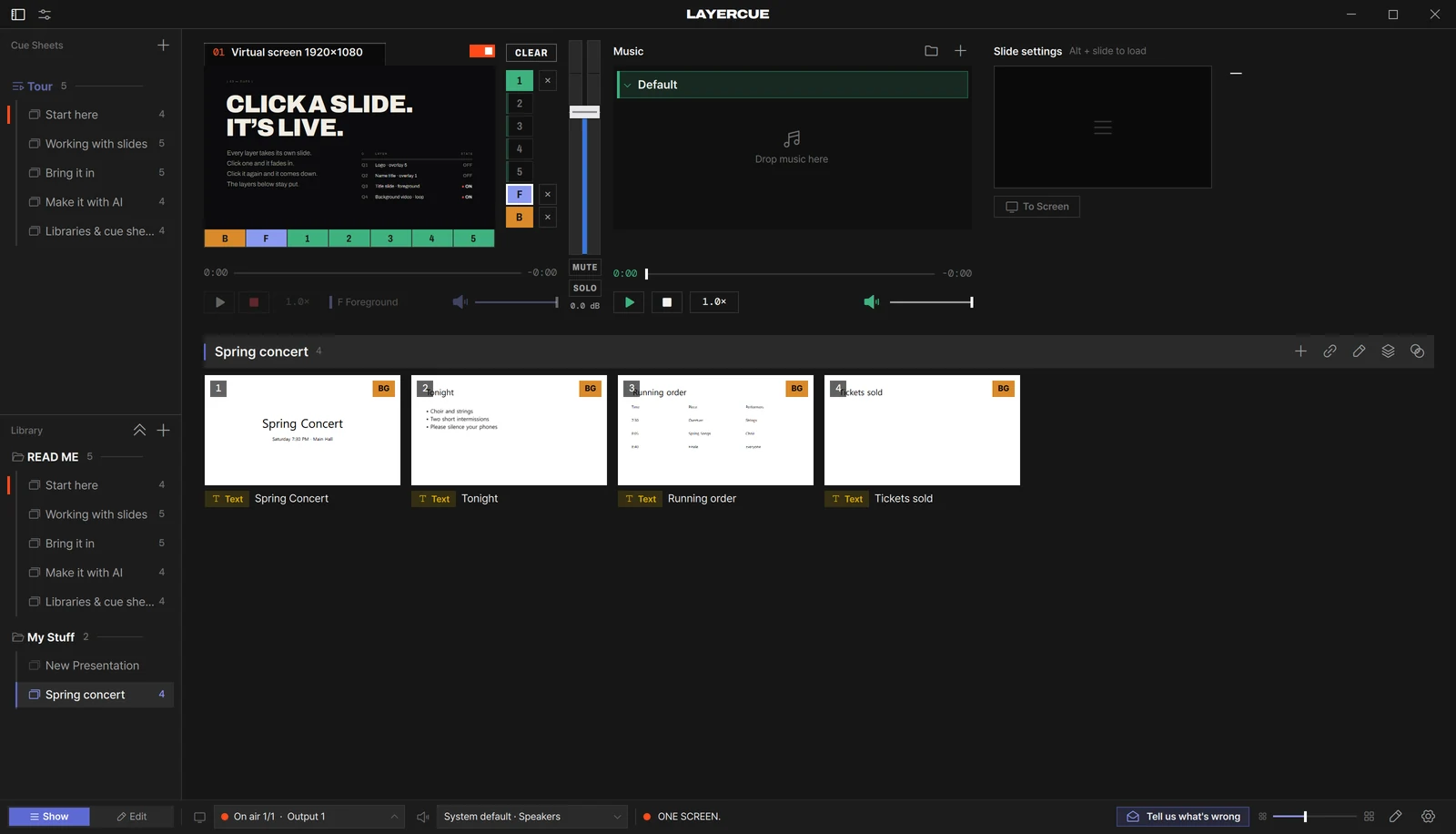
LayerCue opens a PowerPoint file (.pptx) and rebuilds every slide out of its own boxes — text boxes, shapes and pictures. The text stays text, so you can edit it like any slide you made in LayerCue. PowerPoint doesn’t need to be on this computer; LayerCue reads the file itself.
Each slide arrives as a Text slide — or, when a picture fills its background, as an Image slide with its text on top. Open it in the slide editor to change anything on it.
Three ways in
Section titled “Three ways in”| How | Where the slides go |
|---|---|
| New Presentation → From PowerPoint… | A new presentation, in the library you pick |
| Add File on a presentation | At the end of that presentation |
| Drag the file from the Finder / File Explorer onto the slide list | Where you drop it |
As a new presentation
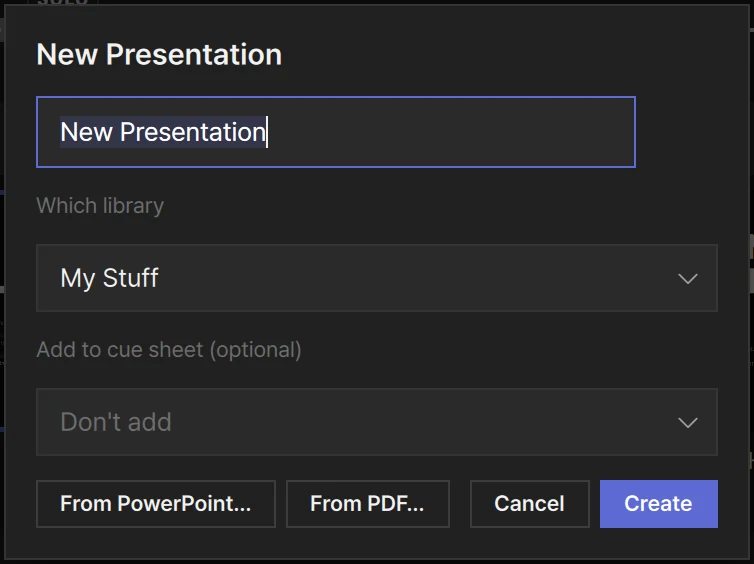
Section titled “As a new presentation”- Click + next to Library in the sidebar and choose New Presentation. The + next to Cue Sheets has it too.
- Pick Which library. If it’s for an event you’re putting together, pick that cue sheet under Add to cue sheet (optional) as well.
- Press From PowerPoint… — not Create — and choose the file.
Leave the name as New Presentation and the presentation is named after the file. Type a name first and it uses yours.
Into a presentation you already have
Section titled “Into a presentation you already have”Press Add File (+) at the right of the presentation’s title bar, or right-click the title bar and choose Add File. Pick the .pptx and its slides go at the end of that presentation.
Or drag the .pptx onto the slide list. A line shows where it will land, and the slides go in at that spot. Drop it on a card and they go in right after that card. The card itself is left alone — a PowerPoint file never swaps a card’s media the way a video or picture does.
One file at a time. Drop or pick several .pptx files together and only the first one is imported; PowerPoint files are imported one at a time tells you so.
While it imports
Section titled “While it imports”Importing PowerPoint… shows when LayerCue starts working through the file. When it’s done, the presentation is selected and the notice gives the count, such as Imported 24 slides from PowerPoint.
Start another import before then and you get Already importing a PowerPoint file.
What comes across
Section titled “What comes across”| In PowerPoint | In LayerCue |
|---|---|
| Text in text boxes and placeholders | Text boxes, with the formatting they took from the layout and slide master |
| Theme colors and theme fonts | The same colors, and the same fonts when they’re on this computer (see Fonts) |
| Bold, italic, underline, strikethrough, color and size — also when they change partway through a line | Kept |
| Superscript and subscript | Kept |
| Character spacing | Kept — one value per box, the one used most |
| Line spacing | Kept — one value per box. Exactly in PowerPoint turns on Exact line spacing |
| Space before and after paragraphs | Paragraph spacing — one value per box |
| Alignment — left, center, right, justified; top, middle, bottom | Kept — one per box, taken from its first paragraph |
| Text PowerPoint shrank to fit its box | Comes in at the shrunk size |
| Rectangles, rounded rectangles, ovals | Shapes, with their fill (solid or gradient) and outline |
| Triangles, diamonds, block arrows | Polygons |
| Lines, straight connectors, braces, freeform shapes | SVG images |
| Tables | One box per cell for its text, plus its fill and borders. Merged cells stay merged, and rows grow to fit their text as in PowerPoint |
| Groups | Taken apart — each piece lands in its own place |
| Rotation | Kept |
| Pictures | Pictures, with their crop and transparency. CMYK and wide-gamut photos keep their real colors |
| EMF pictures | SVG images (a very large one becomes a picture) |
| Slide background — color, gradient or picture | Kept, as the slide’s own background (see below) |
| 4:3 slides | Centered on the 16:9 screen, with black at the sides |
Afterwards it’s all ordinary boxes. A table is no longer a table — each cell’s text is its own text box, so you edit one cell at a time. Moving, resizing and restyling work the same as on any slide; see The slide editor and Design tools.
Bullets come in as the bullet character typed at the start of the line. Automatic numbering (1. 2. 3.) doesn’t — type the numbers in if you need them.
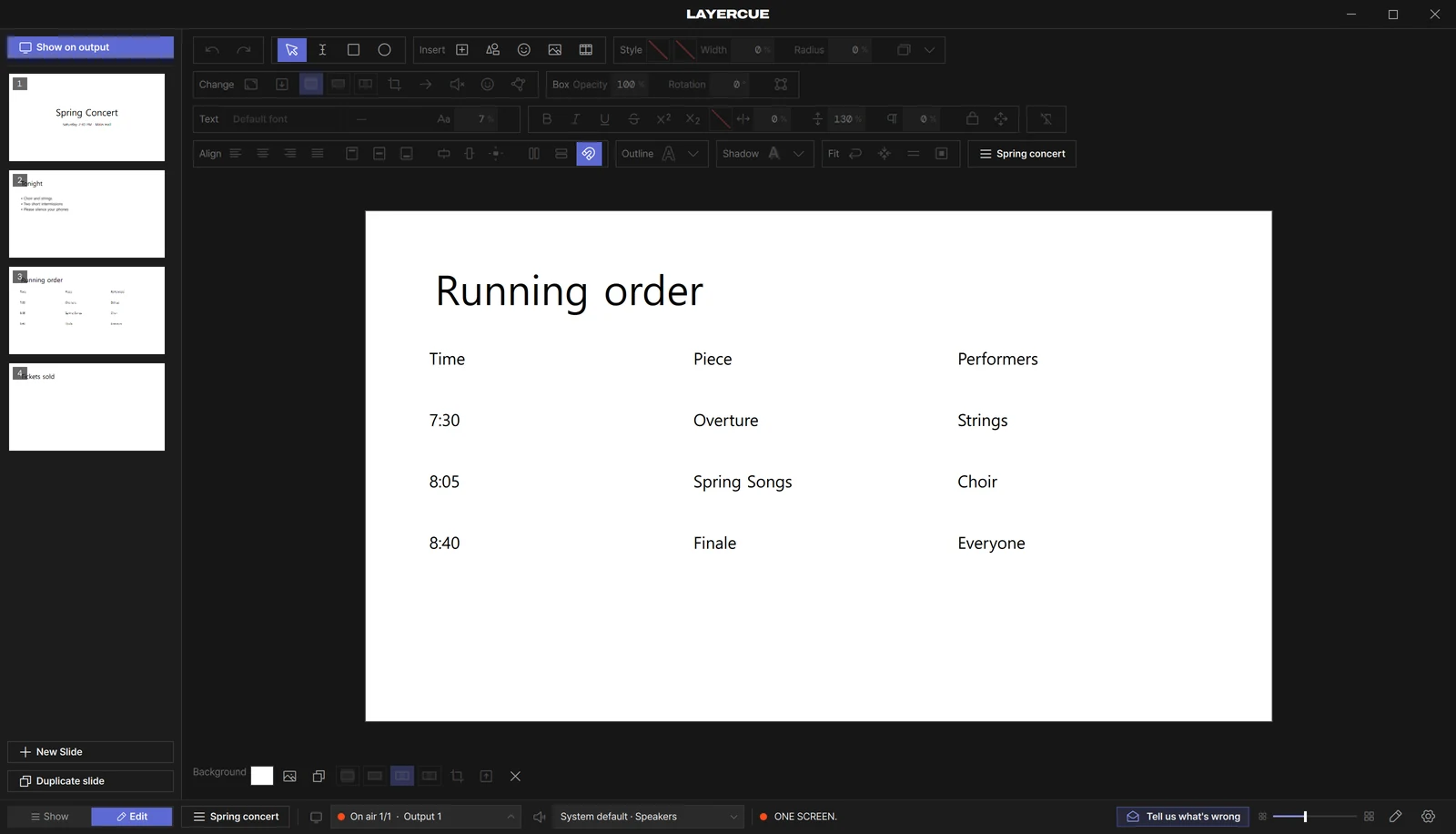
The background goes on the background layer. Because each slide keeps its background as its own, imported slides go out in two parts: the background on B, the text and shapes on F. When the next slide has the same background, only the words change, and a monitor whose B cell is off shows the words alone. The cards show the BG chip; click it to make a slide one piece on the foreground again. More in Layers.
What doesn’t come across
Section titled “What doesn’t come across”- Anything placed on the slide master or a layout — a logo in the corner, a band across every slide. The master’s text formatting and its background do come in; the shapes and pictures on it don’t.
- Charts and SmartArt.
- Videos and sounds. Add them as their own slides with Add File.
- Animations and transitions.
- Shadows, glows and other effects on shapes.
- Speaker notes.
Hidden slides are not skipped — they come in with the rest. Delete the ones you don’t need.
When the notice says “May differ from the original:”
Section titled “When the notice says “May differ from the original:””If something didn’t come across exactly, the notice lists it after the slide count. For example:
Imported 24 slides from PowerPoint — May differ from the original: charts and SmartArt, bent connectors (drawn straight)
| In the list | What happened |
|---|---|
| 3 slides skipped | Those slides couldn’t be rebuilt. The rest came in |
| unreadable slides | A slide in the file couldn’t be read and was left out |
| charts and SmartArt | Left out |
| WMF pictures | Left out |
| unreadable pictures | Left out |
| linked pictures | Left out — the picture is linked from outside the file rather than saved in it |
| flipped pictures (shown unflipped) | The picture is there, but not flipped |
| bent connectors (drawn straight) | An elbow or curved connector becomes a straight line |
| special shapes (drawn as rectangles) | A shape LayerCue doesn’t know — a star or a callout, say — becomes a rectangle |
| parts of freeform curves | Some curved stretches of a freeform shape are missing |
| some text inside pictures | Text inside an EMF picture didn’t come through |
| some photos inside pictures | Photos inside an EMF picture didn’t come through |
A font that isn’t on this computer is replaced by LayerCue’s default font. When the font’s name carries a weight — Bold, Light and so on — that weight is kept.
Decks made on Windows often use fonts a Mac doesn’t have, and the other way round. A replacement font has different widths, so lines can break in different places. Look through the slides before the show.
The fonts are checked at the moment you import. To keep the original font, install it on this computer before you import. You can also change the font afterwards in the slide editor.
When it won’t import
Section titled “When it won’t import”| Notice | What it means |
|---|---|
| Old PowerPoint files (.ppt) can’t be imported directly — open it in PowerPoint or Keynote, save it as .pptx, then import that | The file is in the old .ppt format. Save it as .pptx and import that |
| This is not a PowerPoint (.pptx) file | Whatever its name says, the file isn’t a .pptx inside — or it’s damaged |
| Could not import the PowerPoint file — and a reason | The slides weren’t added. The reason follows the dash |
One ⌘Z / Ctrl+Z takes back the whole import — every slide, and the new presentation too if the import made one.
The notice says Undone — PowerPoint import.
Where the pictures go
Section titled “Where the pictures go”Pictures in the deck are copied into LayerCue’s media folder, with names that start with the PowerPoint file’s name. Import the same file again and the pictures already there are reused, not copied twice. Undo leaves the copied pictures in the folder. See Where your files live.